

Ashby
The Ashby integration reads candidates who have accepted an offer and creates them as upcoming employees, with their start date, job title, department, location and hiring manager. A pre-boarding flow triggered on start date can then reach them at a personal address before their work account exists.
Before you start
Section titled “Before you start”- You are an admin or owner in Pyn.
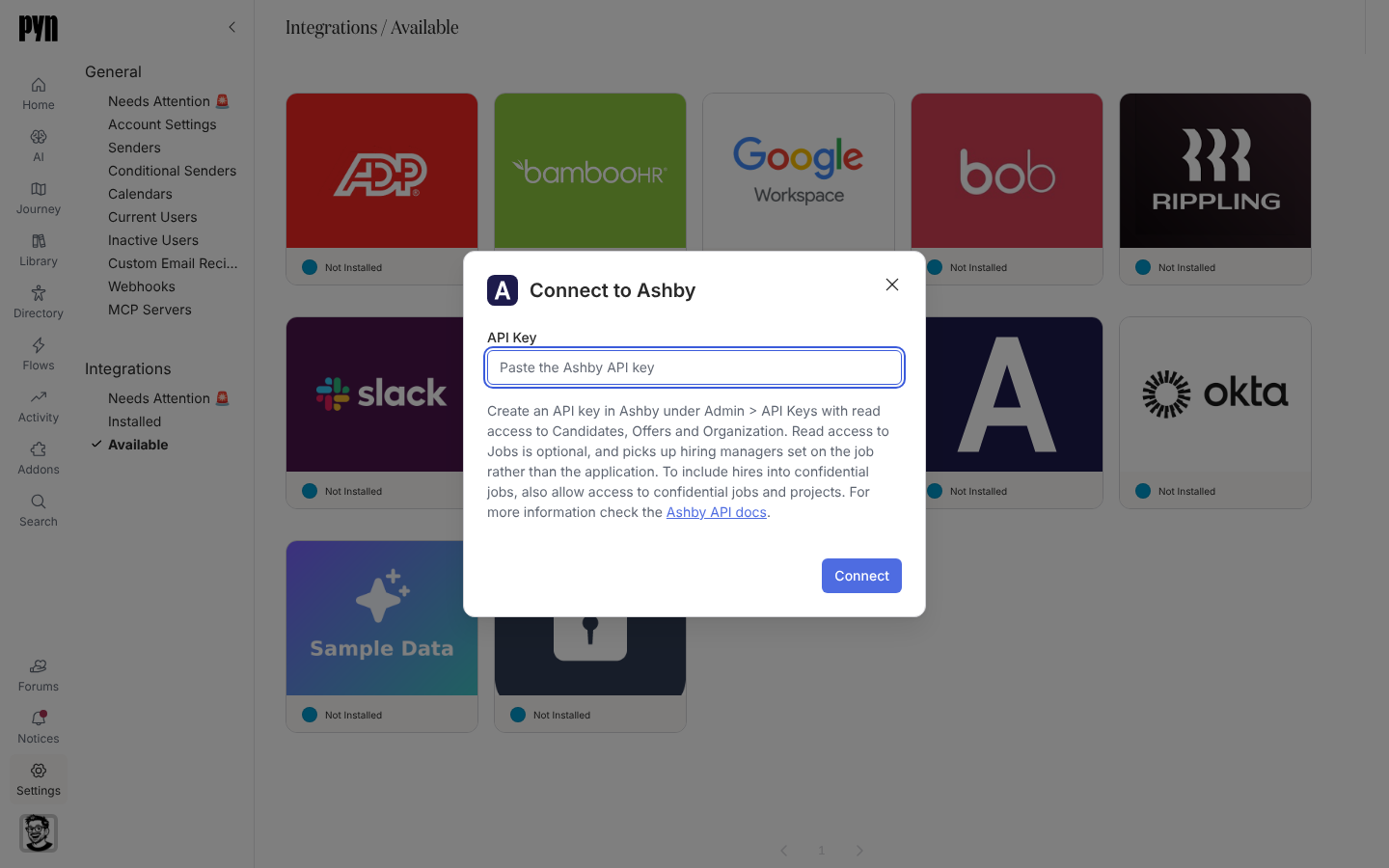
- An Ashby admin creates an API key under Admin > API Keys with read access to Candidates, Offers and Organization. Read access to Jobs is optional and picks up the hiring manager set on the job rather than the application. To include hires into confidential jobs, also allow access to confidential jobs and projects.
Connect
Section titled “Connect”-
In Pyn, open Settings in the left navigation, then Available under Integrations.
-
Select the Ashby tile. The Connect to Ashby dialog opens.
-
Paste the API Key.
-
Select Connect. The dialog shows “Validating that API key…” while Pyn checks it.
-
On success a notice reads “Your Ashby integration has been added to Pyn. It will take a minute or two for candidate data to be pulled from Ashby.”
Errors the dialog can show: “Could not verify that API key — it appears to be invalid or deactivated.” / “The API key is valid but lacks the permissions needed. Grant it read access to Candidates, Offers and Organization and try again.” / “Enter an Ashby API key.”
What syncs
Section titled “What syncs”Pyn refreshes from Ashby every 15 minutes while the integration is active. For each hired application it reads:
| Pyn property | From Ashby |
|---|---|
| Display name, legal name | The candidate’s name |
| Work email, personal email | The candidate’s work and personal contact emails |
| Start date | The latest offer version’s start date |
| Job title | The application’s job |
| Department, location | The job’s department and location names |
| Manager | The job’s hiring manager (an Ashby user) |
| Time zone | The candidate’s time zone |
| Custom fields | Any workspace extension mapped to an Ashby custom field, read from the offer, then the application, then the candidate |
Hires appear in the Directory as Upcoming until their start date. See Sync cadence and matching for how they are matched to the HRIS record that arrives later.
Test it
Section titled “Test it”After the first refresh, open Employees and select the Upcoming view: recent hires should be listed with their start date. The integration’s History tab shows each refresh.
Reconnect or disconnect
Section titled “Reconnect or disconnect”- Reconnect from the … menu opens Reconnect to Ashby to paste a new key. “Your Ashby integration has been updated.” confirms it.
- Deactivate pauses syncing; Activate resumes it.
Troubleshooting
Section titled “Troubleshooting”| What you see | What it means |
|---|---|
| History: “Error: Authentication failed, please reconnect” | The key was deactivated in Ashby. Create a new one and reconnect. |
| History: “Error: Insufficient Ashby permissions” | The key is missing a read scope. Grant Candidates, Offers and Organization. |
| A hire is missing | The offer is not accepted, or the job is confidential and the key cannot see it. |
| Hiring manager blank | Grant read access to Jobs, or set the hiring manager on the application. |
Related
Section titled “Related”- Integrations for the catalogue.
- Greenhouse for the other ATS integration.
- Sync cadence and matching for how ATS and HRIS records merge.
- Automations to build a pre-boarding flow on start date.