

Upload media
You have a banner or a document that several messages will use. Uploading it to the Library once means every editor can pick it from From Library.
Before you start
Section titled “Before you start”- The file is one of the supported types listed in Media types and scan states.
-
In Pyn, open Library in the left navigation and select Everything under Media in the left rail.
-
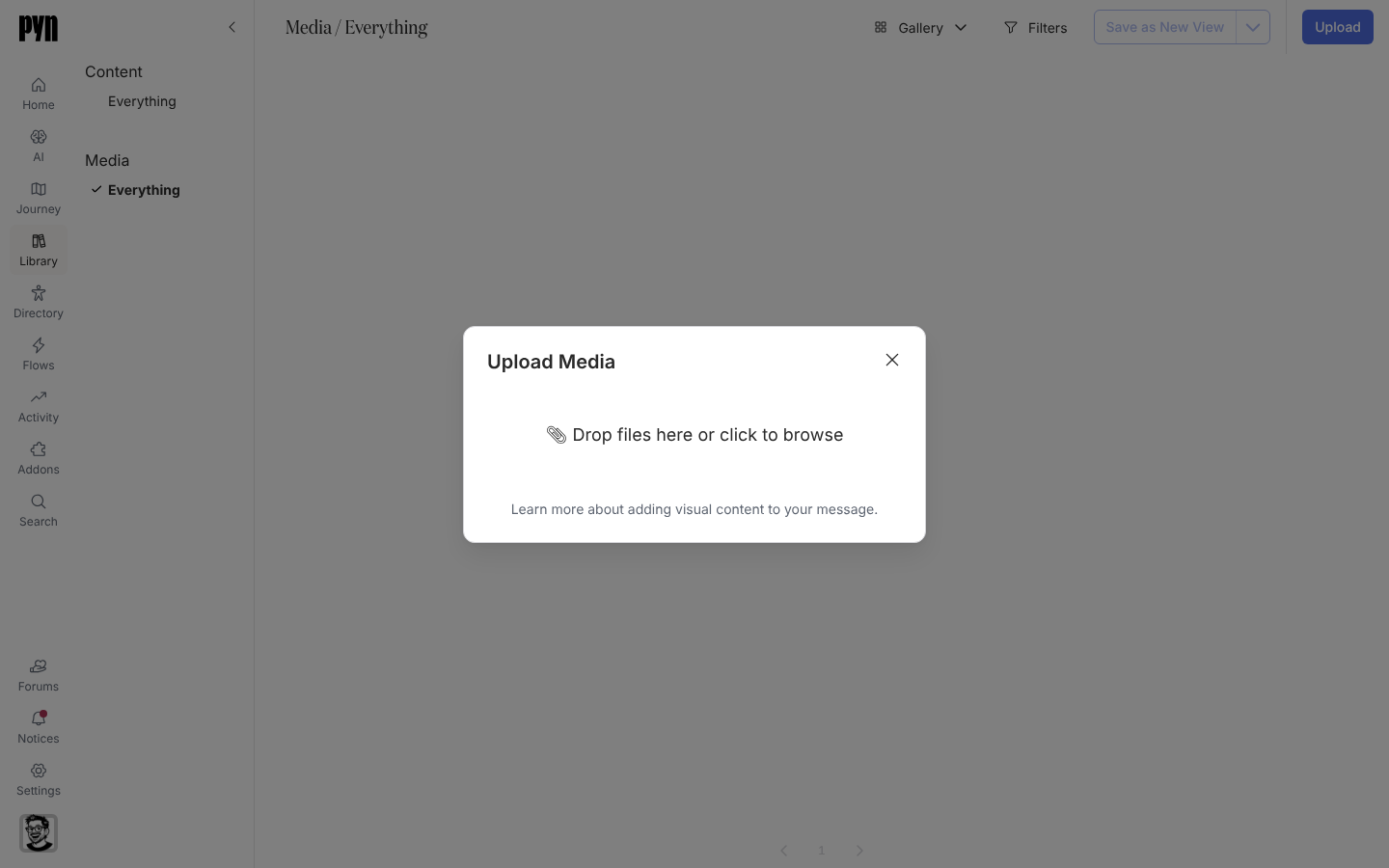
Select Upload at the top right. The Upload Media dialog opens.
-
Drop the file onto Drop files here or click to browse, or select it to choose a file. The dialog reads Uploading… while the file transfers.
-
The dialog closes and the new media item’s panel opens on the right. While the scan runs the panel shows only Malware Scan: Scanning; it refreshes on its own.
-
When the scan finishes, the preview appears and the Details tab lists Content Type, Upload Filename, Malware Scan and, for images, width and height.
What you should see
Section titled “What you should see”The file is the first tile on the Everything view. Select the preview in its panel to open the file in a new tab. It is now offered under From Library in every message and content editor.
Related
Section titled “Related”- Insert media in a message to use the upload.
- Media types and scan states for supported files and what each scan state means.