

Invite a user
A colleague needs to build flows or read activity. You invite them by email with a role, Pyn emails them a link, and they appear as Pending until they sign in.
Before you start
Section titled “Before you start”- You are an admin or owner. The Invite button is disabled for other roles.
- Decide the role. See Users for what each allows; the default in the form is Admin.
-
In Pyn, open Settings in the left navigation, then Current Users under General.
-
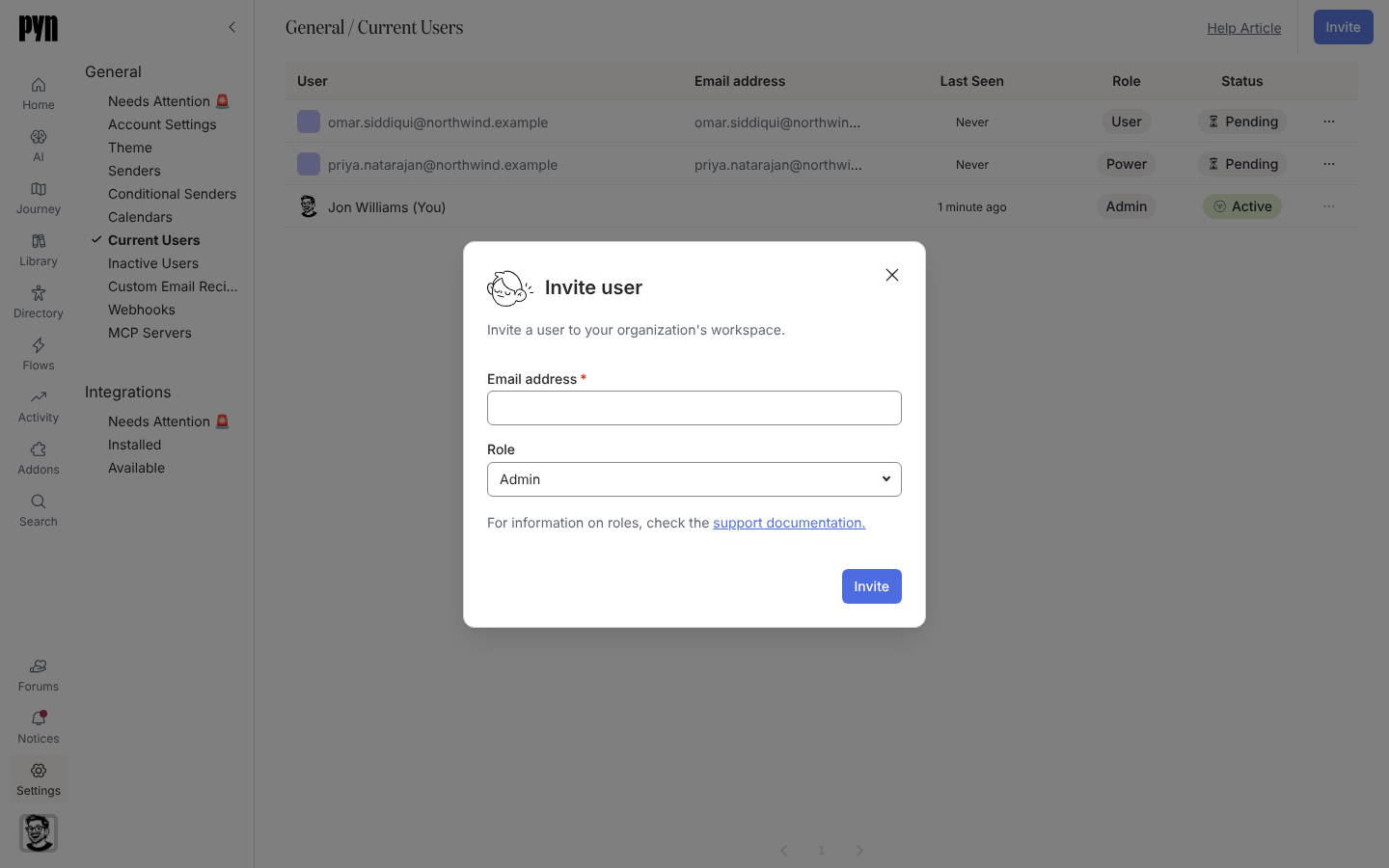
Select Invite in the top right. The Invite user dialog opens: “Invite a user to your organization’s workspace.”
-
Enter their Email address.
-
Choose the Role: Admin, Power User or Limited User.
-
Select Invite. The dialog reports Success! with “They will receive an email from Pyn inviting them to join your workspace.” Select Done.
-
If the dialog says Already Invited! with “That user already exists in the system.”, the address is already a user. Find them in Current Users (or Inactive Users) instead.
What you should see
Section titled “What you should see”The new user appears in Current Users with status Pending and the role you chose. When they open the link and sign in, the status changes to Active and Last Seen starts updating. If the email does not arrive, open their … menu and select Resend Invite; “Invite Sent” confirms it, and “Invite Not Sent” asks you to try again.
Related
Section titled “Related”- Users for the roles and statuses.
- Change a user’s role if you picked the wrong role.
- Sign in for what the invited person sees.