

Run a pulse survey or poll
One question lands in a message every week or month, the click is the answer, and the results export as a CSV with one row per person. For: Power Users, admins and owners. Time: about 20 minutes.
What you’ll need
Section titled “What you’ll need”- A Power User, Admin or Owner role to create and publish the poll; an Admin or Owner to publish the automation; see Publish an automation.
- An email sender, or Slack connected for direct messages; see Add an email sender and Slack.
- The question. A poll is answered in one click, so keep it to one Likert Scale or one Checkbox; three to five questions make a form instead; see Polls and Forms.
- A group for the audience if the pulse is for one team or country; see Create a filter group.
- Optional: a Slack channel for a team-wide pulse, for a Post to Channel step, where enabled for your workspace.
Build it
Section titled “Build it”-
Create the poll under Flows, Polls with one Likert Scale field, the question in Label and Description left empty, then Preview and Publish; see Run a quick poll.
-
For more than one question, build and publish a form with Required on the fields that matter instead; see Build a form.
-
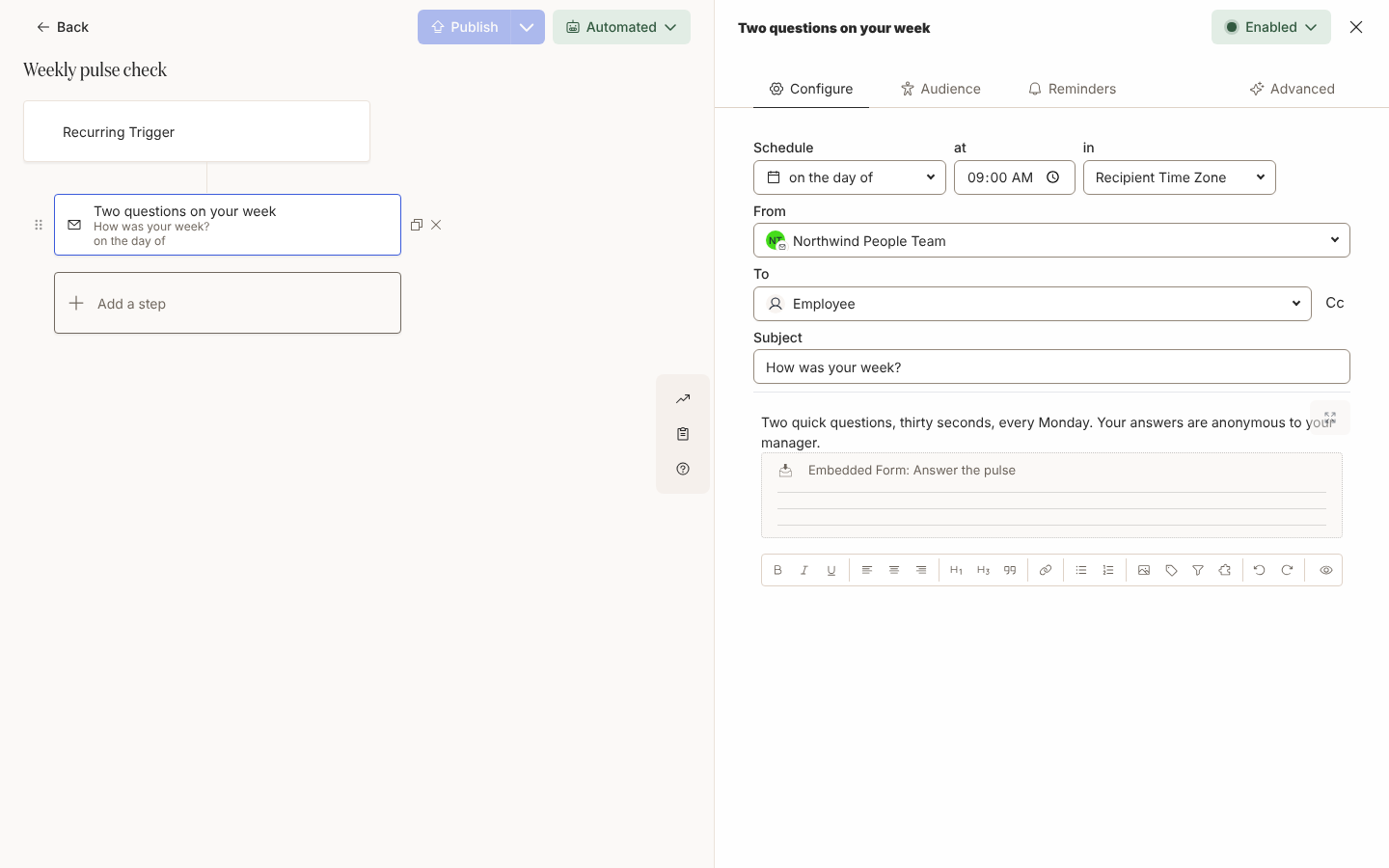
Create an automation with the Recurring Trigger under Dates and Schedules, set the start date, the time, the time zone and Weekly or Monthly, and check the list of upcoming runs; see Configure a recurring trigger.
-
Open the trigger’s Audience tab, keep Lifecycle at Current and include the group the pulse is for, before you publish; see Set the audience for an automation.
-
Add a Send Direct Message or Send Email to Employee step to Employee on the day of, write two lines on why you are asking, then select Insert widget, Embed Form and pick the poll or form; see Embed a form in a message.
-
Select Preview, pick an employee under Preview for principal, then Send a test to yourself and click an answer; see Preview and send a test.
-
Select Publish on the automation; see Publish an automation.
-
After the first run, open the Activity drawer on the poll or form to read who has answered and select Export to CSV for the scores; see Review and export submissions.
Variations
Section titled “Variations”The buttons sit under the message and the clicked one highlights. Each field can be clicked, so a form with a Likert scale and a checkbox works here. A click in Slack leaves the delivery Unactioned, so the export, not Actions, is the record of who answered. For a team-wide pulse, embed the poll in a Post to Channel step, where enabled for your workspace; see Post to a channel.
The email carries a button labelled with the poll’s title that opens the respond page with the same row of buttons. The first click completes the page, so keep the poll to one field; a Text field is not shown there. Opening the poll from the email marks the delivery Actioned. See The reader and respond pages.
For a one-off pulse at a moment in the journey, skip the recurring trigger and put the same step at the end of week one in your onboarding automation; that is the flow Run a quick poll builds.
Watch out for
Section titled “Watch out for”- A recurring trigger with the default audience enrols every current employee on every run, so set the audience first. A 09:00 run enrols within the hour after 09:00; see Configure a recurring trigger.
- A field’s Description replaces its Label as the question people see and as the CSV column header, so put the question in one or the other; see Form field types.
- A Slack answer never changes the delivery status, so reminders on a poll step reach people who have already answered. Leave reminders off a poll; see Add reminders.
- Your own test clicks are excluded from the Activity drawer and the export, and the export stops at 1,000 rows; see Review and export submissions.
- Unpublished polls appear in the Embed Form list, so publish before the step sends, and again after any later edit; see Build a form.
Check it worked
Section titled “Check it worked”After the first run, Enrollments lists one enrollment per audience member with the run date as Reference Date, and each later run adds another set. The step reads Delivered, then Actioned once the person opens the poll from an email. In the poll’s Activity drawer each answer sits against the person’s name, newest first, and the CSV holds employeeId, submissionId and the Likert score as a number from 1 to 5. Under Actions, filter by the step for who has not opened an email poll; see Track actions.
Related
Section titled “Related”- Run a quick poll for the poll editor and the embed, click by click.
- Review and export submissions for the Activity drawer and the CSV columns.
- Configure a recurring trigger for the schedule.
- Answer a form or poll for what the recipient sees in Slack and on the respond page.
- Polls for how a poll differs from a form.