

Google Workspace
Google Workspace gives Pyn two things: Gmail senders, so an email comes from a named colleague with replies going to their inbox, and Google Calendar, so a flow can invite someone to a recurring event. Both are per-account grants: a person signs in to Google and allows Pyn, and Pyn stores only that grant. The integration tile exists to show the connected accounts and the hosted domain.
Before you start
Section titled “Before you start”- To add a sender or calendar you sign in to Google yourself; an admin cannot do it for someone else. For a person without a Pyn login, create an auth link.
- Your Google Workspace admin may need to allow the Pyn app for your organisation.
- Scopes Pyn asks for:
userinfo.emailanduserinfo.profilealways;gmail.sendfor a sender;calendar.calendarlist.readonlyandcalendar.events.ownedfor a calendar. Pyn cannot read your mail.
Connect
Section titled “Connect”-
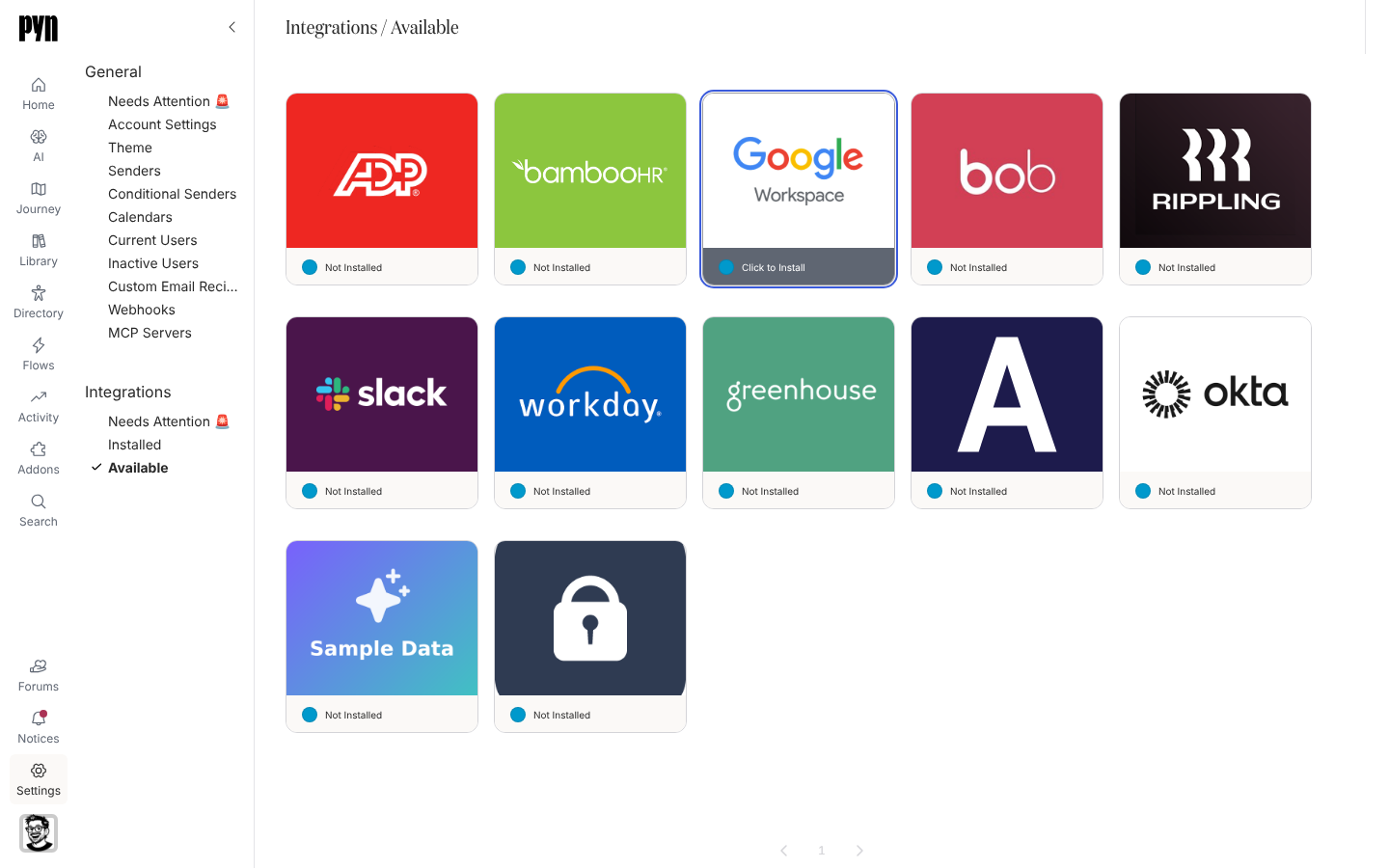
In Pyn, open Settings in the left navigation, then Available under Integrations.
-
Select the Google Workspace tile. Google opens; choose the account and select Allow. This connects your account as a sender and installs the integration.
-
Google returns you to Pyn. The tile moves to Installed as Active, and your sender appears under Settings > General > Senders.
-
For more senders, each person uses Senders > Add > Add Google Email Sender. See Add a Google or Microsoft 365 sender.
-
For a calendar, use Calendars > Add > Add Google Calendar and pick the calendar to sync. See Connect a calendar.
What syncs
Section titled “What syncs”- Senders: name, email and hosted domain, read when the account connects; Refresh Details re-reads them.
- Calendars: recurring events from the selected calendar, with start, recurrence and the event’s own time zone, so an invite lands at the right local time. Pyn refreshes every five minutes while the integration is active and Refresh Events pulls changes now.
- Deliveries: each email and calendar invite is a delivery you can see in Activity, with bounce reasons such as Sender Error or Raw HTML Email Not Enabled.
The integration panel’s Details tab shows the Hosted Domain; its Senders tab lists every connected Google sender.
Test it
Section titled “Test it”Open a Google sender under Senders, open its … menu and select Send Test; “Test Message Sent” confirms it and the email arrives in your inbox from you. For a calendar, open it under Calendars and check its events list after “Pyn is syncing this calendar. This can take a few minutes.” clears.
Reconnect or disconnect
Section titled “Reconnect or disconnect”- A sender or calendar that shows Requires reauth carries a Reconnect button; the owner of that Google account signs in again. If someone else tries, Pyn asks them to confirm they have permission for that address.
- Deactivate on the integration tile stops every Google sender and calendar; Activate restores them. Archive an individual sender from the Senders view.
Troubleshooting
Section titled “Troubleshooting”| What you see | What it means |
|---|---|
| Requires reauth on a sender or calendar | The password changed or the grant was revoked in Google. The account owner reconnects. |
| Google shows an admin approval screen | Your organisation restricts third-party apps. A Google Workspace admin allows Pyn, then you connect again. |
| Delivery bounce reason Raw HTML Email Not Enabled | The step sends raw HTML and this workspace has that switched off for Gmail senders. Use the editor or ask support. |
| Calendar events list is empty | Pyn syncs recurring series only; one-off events are not listed. Use Refresh Events after adding a series. |
| Event Not Found on a step | The series was deleted in Google. Pick another event on the step. |
Related
Section titled “Related”- Add a Google or Microsoft 365 sender for the sender steps.
- Connect a calendar for the calendar steps.
- Create an auth link for someone without a Pyn login.
- Microsoft 365 for the Outlook equivalent.