

Add a campaign template
The catalogue holds campaign templates written for you: the public holidays of Australia, Canada, China, France, India, Israel, Japan, the UK and the US for the year, cultural and religious observances for several of those, days celebrated worldwide, and lighter employee-appreciation days. Each is a set of dated milestones with a message ready to edit. You add one to the workspace, then enrol people into the milestones you want.
Before you start
Section titled “Before you start”- You are an Admin. Power Users see the templates once added but the catalogue button only appears for admins.
-
In Pyn, open Flows in the left navigation, then select Automations.
-
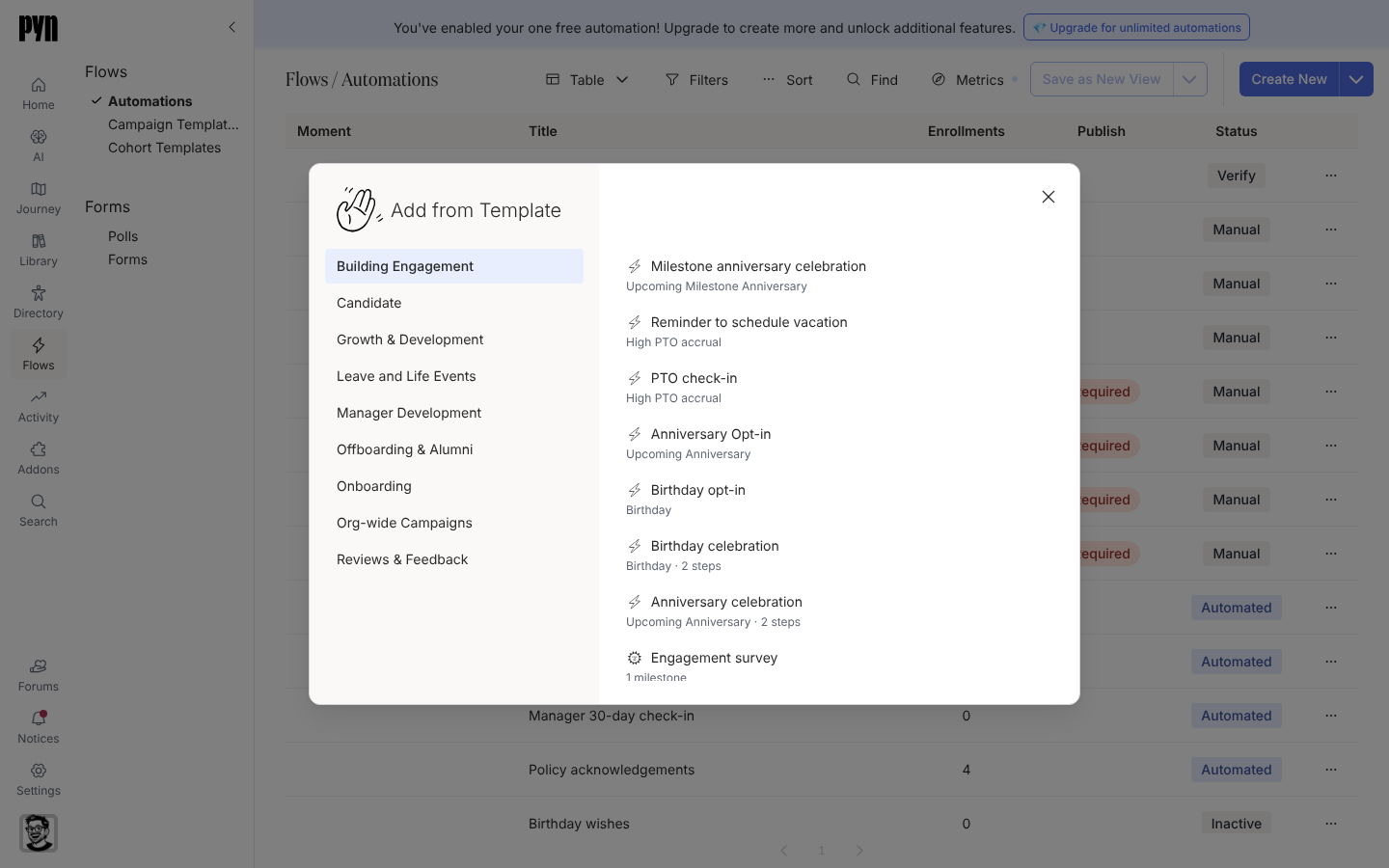
Select the arrow next to Create New in the top-right corner (its label is More create options), then Add from Template.
-
In the Add from Template dialog, pick a journey category on the left. Campaign templates show a calendar icon and their number of milestones; automations show a lightning icon and their trigger.
-
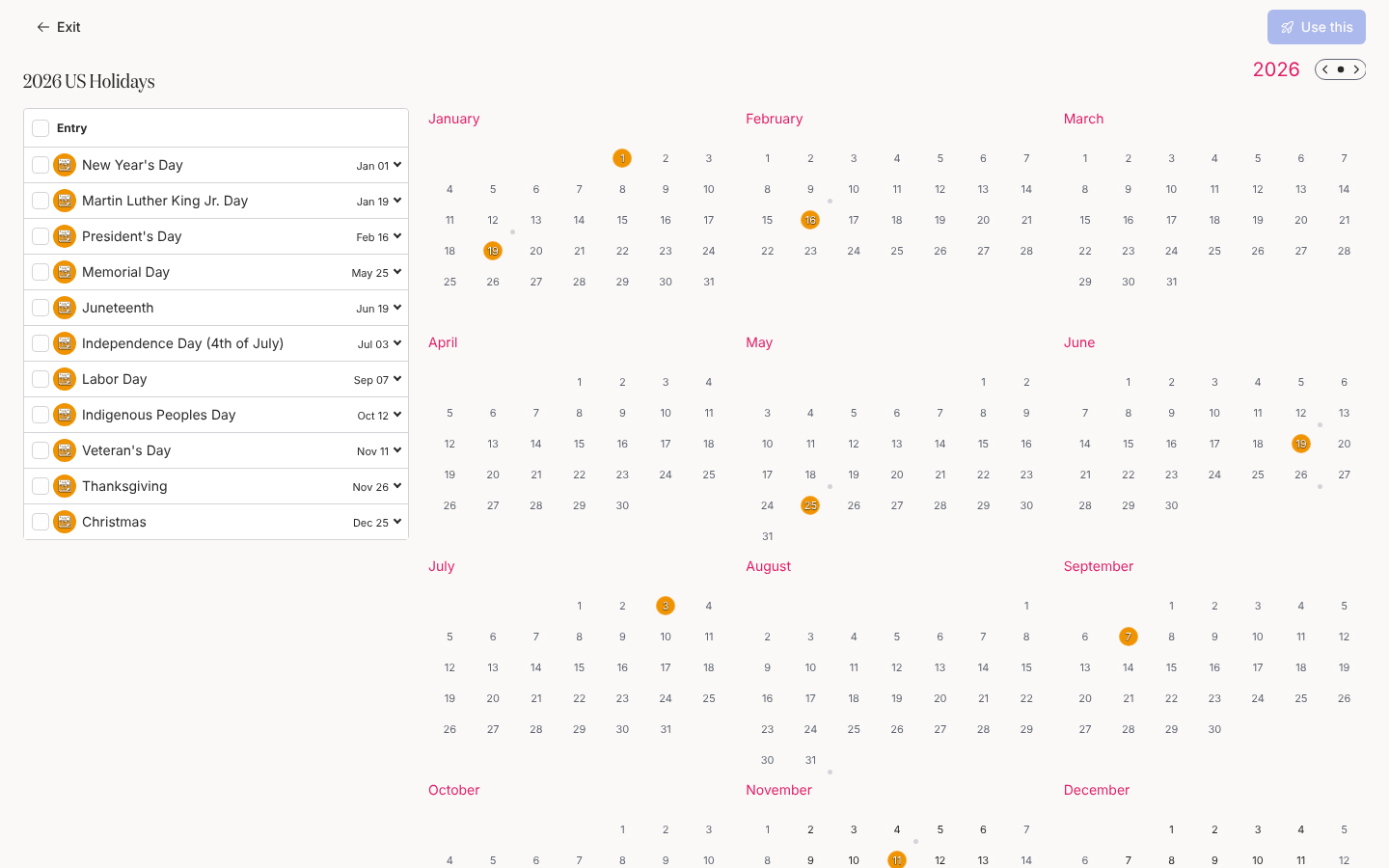
Select the template, for example 2026 US Holidays. Pyn adds it and opens it at
/flows/campaign-template/.... -
Read the calendar: each milestone is a coloured date, and the list on the left names them with their dates. Expand a milestone to see the message steps it carries.
-
When you are ready to use it, follow Enroll employees in a campaign. Select Exit to go back to Flows.
What you should see
Section titled “What you should see”Under Flows, Campaign Templates, the template is listed with its title and, if added from a moment, that moment in the Moment column. Selecting the row opens the template’s calendar page with Use this in the top-right corner. Nothing is sent and nobody is enrolled until you use it.
Related
Section titled “Related”- Enroll employees in a campaign to turn milestones into campaigns.
- Attach a flow or content to a moment to add a template from the journey map.
- Create an automation for the same dialog’s automation templates.