

Choose which notices are emailed
Nobody checks Notices every hour. Three settings send the notices that matter most to admins’ inboxes as well, so a bounced welcome email or an expired Slack token is seen the same day.
Before you start
Section titled “Before you start”- You are a workspace admin. Other roles do not see the gear.
-
In Pyn, open Notices in the left navigation.
-
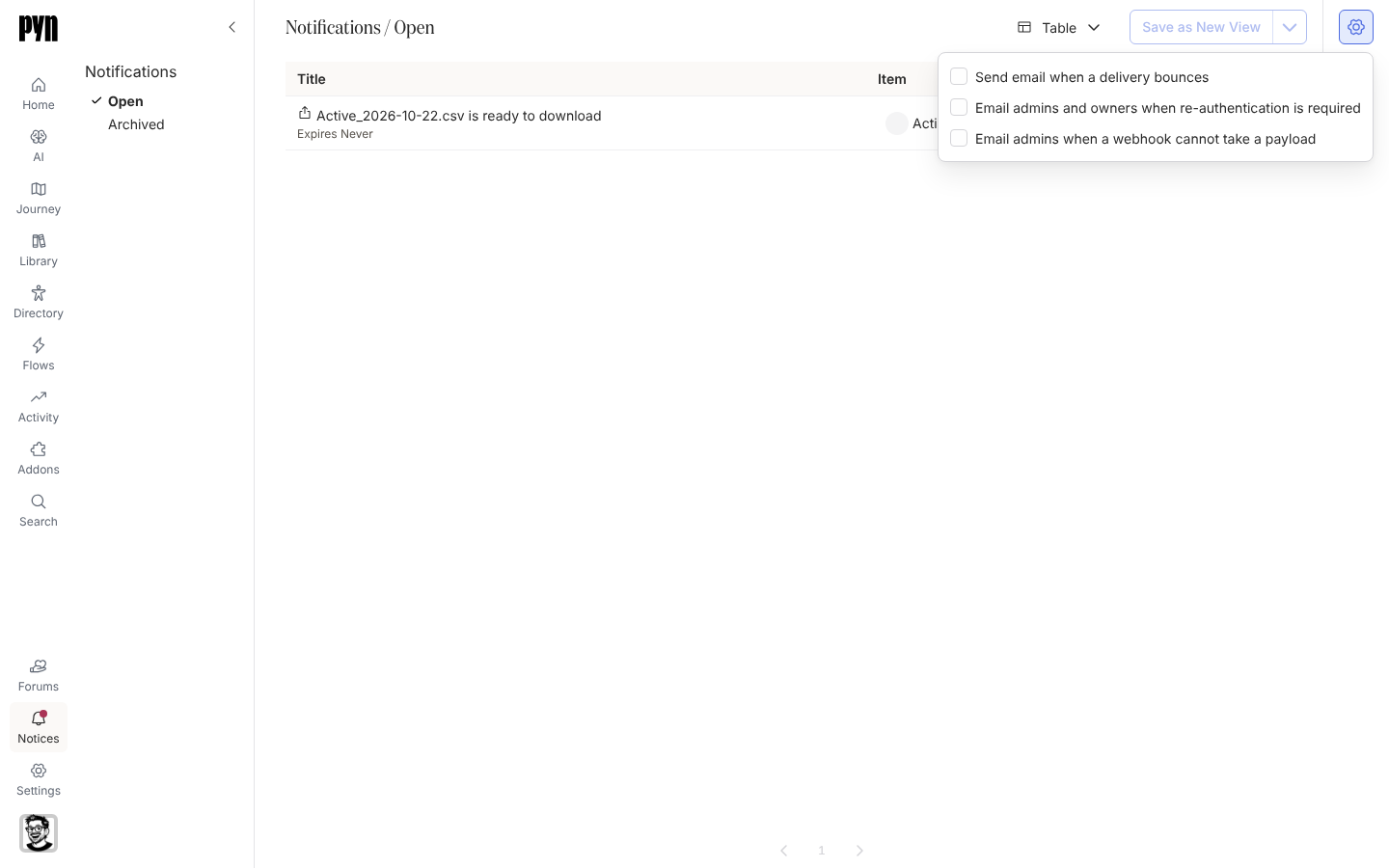
Select the gear button at the top right of the view.
-
Tick the emails you want: Send email when a delivery bounces, Email admins and owners when re-authentication is required, Email admins when a webhook cannot take a payload. Each saves as you tick it.
-
Select anywhere outside the popover to close it.
What you should see
Section titled “What you should see”The next matching notice arrives as an email from Pyn <notifications@pynhq.com> with the notice’s title as the subject and a link that opens the notice in Pyn. The settings apply to the whole workspace, not only to you.
Related
Section titled “Related”- Notice types for which notices each setting covers.
- Read and archive notices for the inbox the email links to.