

Reach new starters before day one
Every new starter hears from you before day one, at an address they can read, and their manager has a checklist in hand a week out. For: admins and owners. Time: about 40 minutes with the messages written.
What you’ll need
Section titled “What you’ll need”- Personal Email Address and Start Date synced from your HRIS; every supported source provides both, see HRIS fields. Open an upcoming joiner in Directory to check.
- An email sender: your People team’s mailbox or a verified address; see Add an email sender. Slack is not an option, because nobody has a Slack account before they start.
- The manager’s checklist as a web page or published content for the button to open.
- Optional: the Pre-onboarding template from the catalogue. It gives you the trigger; you add the steps.
Build it
Section titled “Build it”-
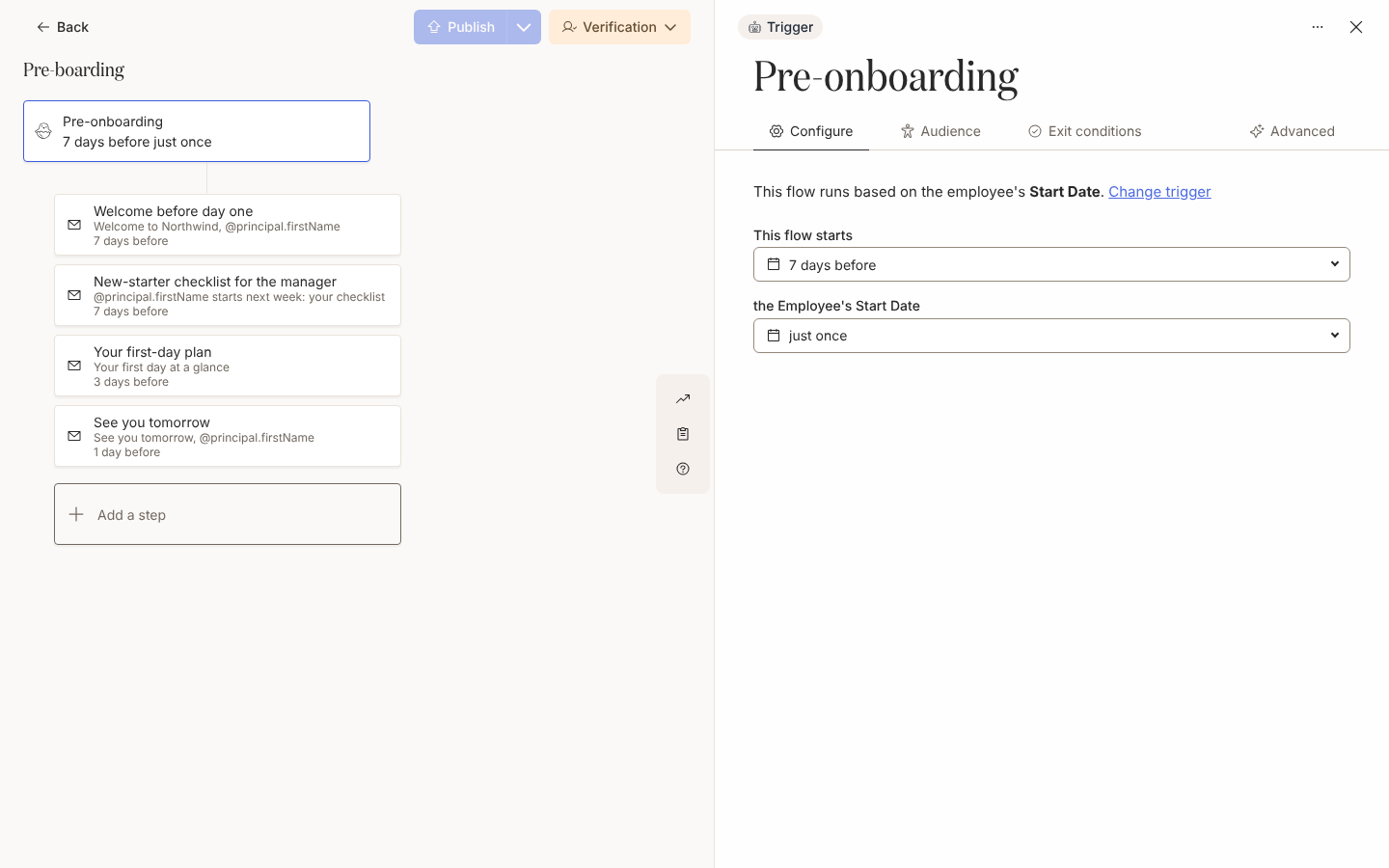
Create an automation with the Pre-onboarding trigger under Employee Lifecycle and leave This flow starts at 1 week before, so it fires on any day from a week before through the start date; see Configure a date trigger.
-
On the Audience tab, tick Joiner and Current under Lifecycle, since people before their start date are joiners, not current employees; see Set the audience for an automation.
-
Add a Send Email to Employee step with To set to Employee (Personal), scheduled 1 week before at 09:00 in the Recipient Time Zone, for the welcome; see Add an email step and Choose recipients and Cc.
-
Add a first-day plan 3 days before and a see-you-tomorrow note the day before, both to Employee (Personal), and turn on Skip if overdue at enrollment on the first-day plan; see Handle late enrollments.
-
Add an email 1 week before with To set to Manager, a Link Button with Track Action ticked and one reminder 2 days after send; see Give managers a new-hire checklist.
-
Open Preview, pick an upcoming joiner under Preview for principal and select Send a test to yourself, so you see the tokens with a real start date; see Preview and send a test.
-
Publish, set the mode to Verification, unpause the first two or three joiners from Needs Review, then switch to Automated; see Tutorial: pre-boarding to a personal email.
Variations
Section titled “Variations”Contractors. If your HRIS supplies an employment type, add the contractor demographic group under Excluded on the trigger’s Audience tab, or put the employee group under Included; an exclusion wins over an inclusion. A contractor who was wrongly welcomed was in the audience, so check Audience Preview after the change; see Set the audience for an automation.
Someone not in the HRIS yet. Add them from Directory > Upcoming with their personal email, start date and manager; the trigger enrols them from there, and Pyn merges the HRIS record when it arrives with the same work email; see Add an upcoming employee.
The moment the record appears. For a single hello the day someone first shows up in the HRIS, use the Will be joining trigger; it has no offset or recurrence; see Trigger catalogue.
Watch out for
Section titled “Watch out for”- Without a personal address, a step to Employee (Personal) has no valid recipient and is marked invalid, so the person gets nothing. Open their profile’s Sources to see which system supplies the address and fix it there; see Fix a missing manager, time zone or email.
- A record that reaches Pyn less than a week before the start date enrols late, and every step already due sends at once; the first-day plan is skipped by step 4. See Handle late enrollments.
- A step before the start date warns “Sent before the start date but the joiner isn’t in the audience” when Joiner is missing; without it the flow enrols nobody; see Set the audience for an automation.
- The trigger’s Prevent repeat enrollments is Never reenroll, so a corrected start date does not re-enrol anyone; stop the enrollment and re-enrol them by hand against the new date; see Move an enrollment to a new start date and Prevent repeat enrollments.
- If Publish appears to do nothing, a step has no recipient; check each step’s To field. See Publish an automation.
Check it worked
Section titled “Check it worked”Each upcoming joiner appears under Enrollments with their start date as Reference and four steps: three to their personal address and one to their manager, named, or No recipient when the relation is empty. In Verification the enrollment waits in Needs Review; see Review and unpause enrollments. A joiner whose record arrived late shows the welcome delivered within minutes of enrollment, the first-day plan complete without a delivery, and the rest on their dates.
Related
Section titled “Related”- Tutorial: pre-boarding to a personal email to build the same automation step by step, with the message copy.
- Onboard from the first day to six months for the flow that takes over on day one, to the work address.
- Configure a date trigger for offsets and the reference date.
- Handle late enrollments for the three ways to treat overdue steps.
- Run a buddy programme for the buddy nomination step that sits in this automation.