

Run an annual campaign
A review cycle, an open enrolment window or a benefits deadline runs on fixed dates to the right groups: managers hear the day before, everyone gets the ask with a button when the window opens, the nudges sit on the calendar before each deadline, and next year you copy the lot with new dates. For: every role; a User can build and enrol one. Time: about an hour for eight steps; about 20 minutes to duplicate last year’s.
What you’ll need
Section titled “What you’ll need”- Groups for the population: Everyone, or a filter group for the cycle such as current employees in the countries the plan covers, plus People managers; see Create a filter group.
- An email sender, or Slack connected for direct messages; see Add an email sender.
- The links each message points to: the self-review form, the benefits portal, the manager guide, or documents published in Library > Content; see Content.
- Optional: Post to Channel for an all-hands reminder, where enabled for your workspace.
Build it
Section titled “Build it”-
Create a filter group for the people in the cycle, and check that People managers exists; see Create a filter group.
-
On Activity > Campaigns, select Create new, title the campaign and set its Date to the day the window opens; see Create a campaign.
-
Add a Send Email to Employee step dated the day before, with To set to People managers and a Link to Library Content button with Track Action ticked; see Choose recipients and Cc and Add a button to a message.
-
Duplicate that step to day 0 with Keep Recipients off, set To to the cycle’s group and point a Link Button at the form or portal, as in A performance review cycle.
-
Add the nudges as steps of their own a few days before each deadline, one to each group, because a campaign step carries no reminders; see Create a campaign.
-
Select Preview, then Send a test to yourself on each step, and set its state button to Automated; see Campaign states.
-
When a deadline moves, drag the step to its new day on the month calendar; see Reschedule a step on the calendar.
-
Next year, duplicate the campaign with a new Reference Date and Recalculate Step Dates on, then read each step before setting it to Automated; see Duplicate a campaign.
Variations
Section titled “Variations”Add the steps as Send Direct Message instead, as in Add a direct message step; the tracked button works the same. Where enabled for your workspace, a Post to Channel step on the opening day puts the dates in front of the whole company in one post; see Post to a channel.
Keep the steps as Send Email to Employee and set From to your People team’s mailbox, as in Choose a sender, so a question about the cycle reaches a person.
An open enrolment window has the same shape with different milestones: a manager note the week before, the opening-day message with a button to the benefits portal, a nudge a week before the window closes, a last-day reminder, and a confirmation once elections are locked. Where plans differ by country, give each country its own steps with the country group under To. For a year of fixed dates rather than one window, start from a catalogue template, as in Holidays and observances for the year.
Watch out for
Section titled “Watch out for”- A campaign step cannot carry reminders or escalations, so every nudge is a step and reaches everyone in its group, including people who have finished; write it so that reads well. See Create a campaign.
- To hold a step, switch it to Manual. A step that has started sending cannot be changed, moved or deleted. See Campaign states.
- Days of Week and On Non-Delivery Days have no effect on a campaign step; a date that falls on a weekend sends on the weekend. See Schedule a step.
- The catalogue’s holiday templates are 2026 editions with each message dated a week before its holiday, and both steps on a milestone go to the same people until you change To on the manager one; see Add a campaign template.
Check it worked
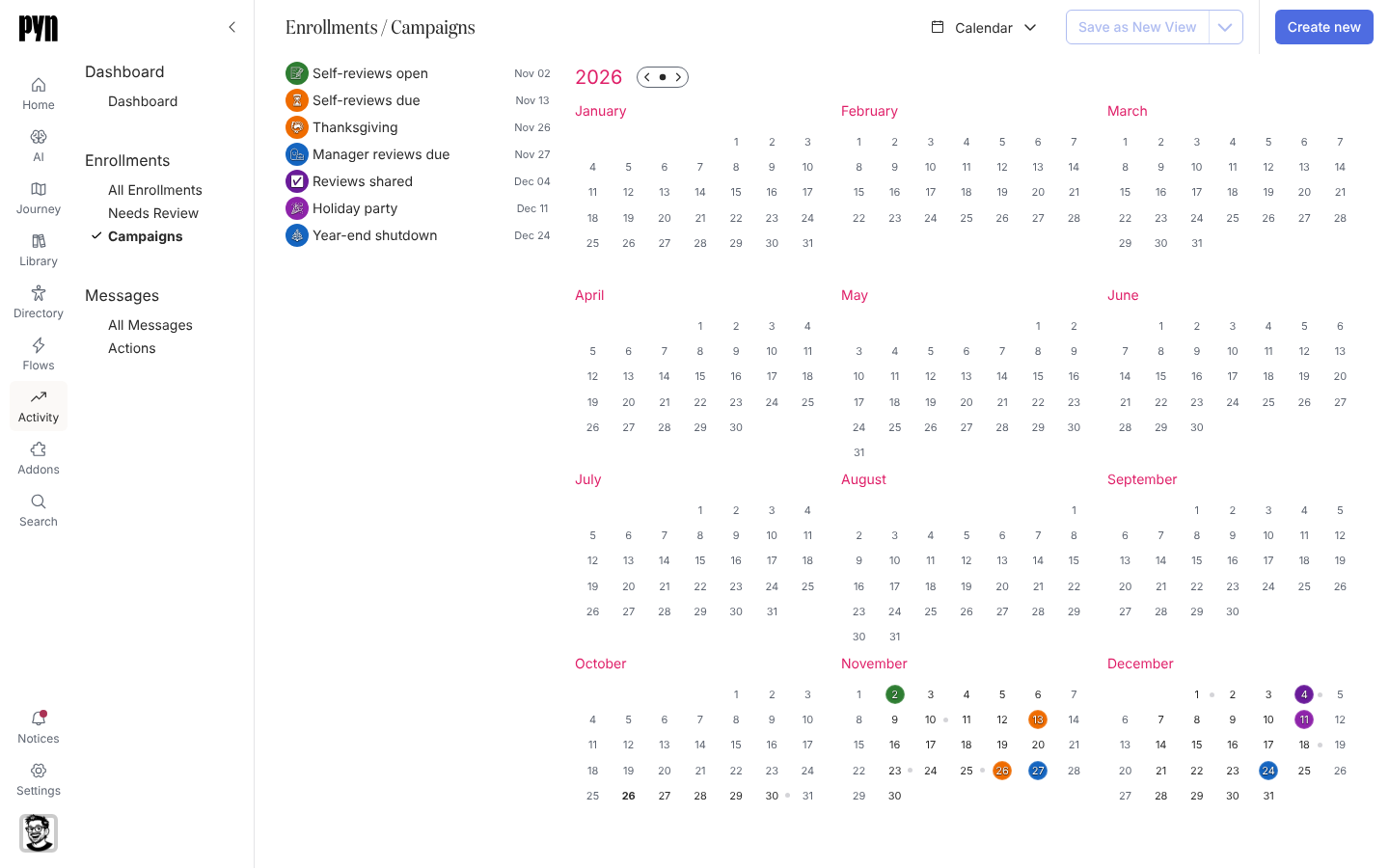
Section titled “Check it worked”On Activity > Campaigns, the campaign is a coloured date with a dot per step across the weeks; select a date to see what sends that day and to whom. As the cycle runs, Track actions lists each tracked button as Actioned, Clicked or Unactioned per person, your live picture of who has started, with a CSV to chase from. Each step’s deliveries appear under Messages and the step reads Complete once they have all sent.
Related
Section titled “Related”- A performance review cycle to build the eight steps in one sitting, with the message copy.
- Holidays and observances for the year for a calendar of dates from the catalogue.
- Create a campaign for the step panel in detail.
- Duplicate a campaign for next year.
- Send recurring reminders for a timetable of sends rather than one window.