

Add an MCP server
You want the People team to ask their AI assistant about who starts next week without giving it the whole workspace. An MCP server is a named bundle of operations with a minimum role; you create it in two steps, details then operations, and hand out its endpoint.
Before you start
Section titled “Before you start”- You are an admin or owner, and MCP servers are enabled for your workspace.
- Pick a name that will not change: lowercase letters, numbers and hyphens, starting with a letter, up to 63 characters.
- Know which operations you want to offer. The picker lists only operations you can call yourself.
-
In Pyn, open Settings in the left navigation, then MCP Servers under General.
-
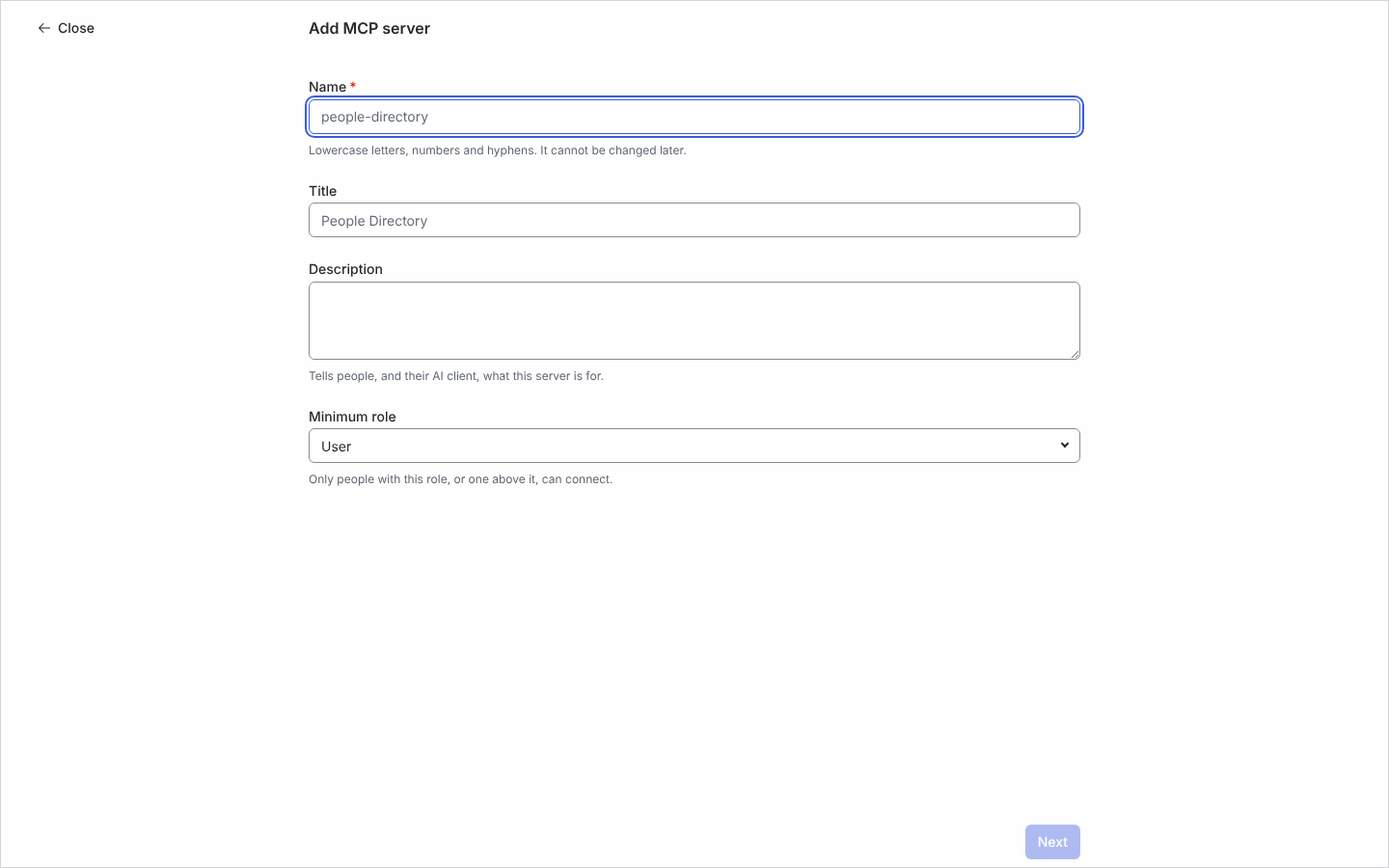
Select Add. The Add MCP server page opens.
-
Enter the Name (for example
people-directory). The field explains “Lowercase letters, numbers and hyphens. It cannot be changed later.” -
Enter a Title and a Description: “Tells people, and their AI client, what this server is for.”
-
Choose the Minimum role: Owner, Admin, Power User or User. “Only people with this role, or one above it, can connect.” Select Next.
-
Under Operations, search to add each operation. The list shows “(changes data)” after any mutation and counts “n / 100 selected”. Remove one with the bin icon beside it.
-
Select Add. The server’s panel opens on the right.
What you should see
Section titled “What you should see”The panel shows the URL under “AI clients connect to this address.”, the description, minimum role and the operations list with each one marked Reads or Changes data. Copy the URL into the AI client’s MCP settings; the client signs in as the person using it and is offered only the operations their role allows. The server row shows Active; use Disable in its … menu to pause it.
Related
Section titled “Related”- MCP Servers for how access is decided.
- Users for what each role can do.
- AI for Pyn’s built-in agents.