

Shipping newsWeek of
See which links get clicked on the Dashboard
Dieser Inhalt ist noch nicht in deiner Sprache verfügbar.
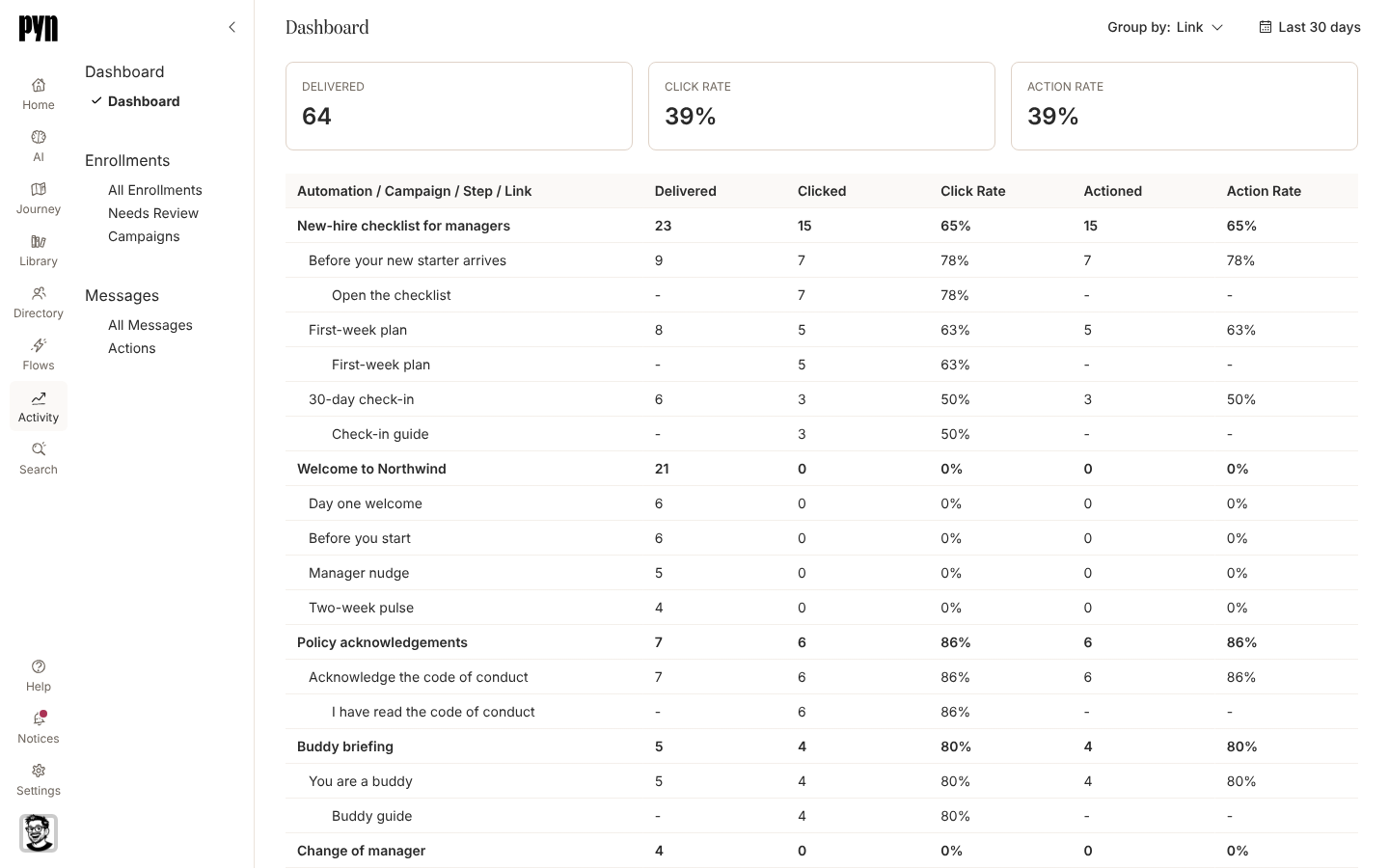
Where the Dashboard is enabled for your workspace, Group by: Link on Activity, Dashboard lists the links in each step, most clicked first, with the number of deliveries each link was clicked in and its click rate against the step’s deliveries. A link is named by its button label, by its text and URL, or by the URL alone; a form or poll button without a label reads Open Form or Take Poll, and links in a step’s reminders and escalations are counted under that step. Read the Dashboard
Emails in your brand
Section titled “Emails in your brand”Where themes are enabled for your workspace, a composed email now goes out in your theme, whichever email sender it is sent from: your font, your link and button colours and, when Show Logo in Emails is on, your logo. Settings, Theme also takes a footer image, shown at the bottom of each composed email when Show Footer in Emails is on, and Logo as Banner shows the logo at its own size, up to the full width of the email. A Raw HTML email is sent as written. Theme your emails
A signature for each email sender
Section titled “A signature for each email sender”A verified email sender can carry a Signature: formatted text with links that Pyn adds to the end of every composed email sent from it, test sends included. Write it under Edit in the sender’s menu, and leave it off a single email by unticking Include the sender’s signature (verified email senders) on the step’s Advanced tab. Add an email sender
Lifecycle groups around any date
Section titled “Lifecycle groups around any date”Admins can create a lifecycle group in Directory: choose Birthday or any date on the employee record, including the custom date fields your HRIS adds, and set Days Before and Days After to say how long each person is in the group. Edit on the group’s menu changes the days or the title later. Use the group in an audience, or point a Group Change trigger at it to enrol each person as they enter the window. Create a lifecycle group
Relationship groups in their own view
Section titled “Relationship groups in their own view”Employee Groups has a Relationship view, so groups such as everyone with a manager or everyone without a buddy are in one place beside Demographic, Lifecycle, Filter and Static. Employee Groups
Find a person in the Audience Preview
Section titled “Find a person in the Audience Preview”Audience Preview on an automation’s audience and on a step’s audience now has Find by name or email. Type part of a name or work email and the list narrows as you type, with the heading counting the matches, for example Audience Preview (3 of 24 match). Set the audience for an automation
An automation’s enrollments beside its steps
Section titled “An automation’s enrollments beside its steps”In the automation editor, Activity on the right-hand rail lists the automation’s enrollments, newest first, each with the employee, the enrollment’s title and its status. Select one to open that enrollment. Automations
Open a form from an email preview
Section titled “Open a form from an email preview”In an email step’s Preview, an embedded form or poll is now a button with its label, as it is in the email itself. Select it to see the form’s fields, then Back to return to the email; Submit there records nothing. Preview and send a test
Change a date trigger from its Configure tab
Section titled “Change a date trigger from its Configure tab”On a date trigger, the first line of the Configure tab, “This flow runs based on the employee’s Start Date”, ends in a Change trigger link that opens Select Trigger, so you can switch an automation to another trigger without opening the drawer’s menu. Configure a date trigger
Tenure from HiBob’s original start date
Section titled “Tenure from HiBob’s original start date”For employees synced from HiBob, Pyn reads Bob’s original start date as Original Start Date in HiBob, and Tenure Date counts from it when Bob has one, so anniversary messages and the tenure token reflect the whole time someone has been with you. HiBob field mapping
An error when something does not go through
Section titled “An error when something does not go through”When Pyn cannot start a Google Workspace or Microsoft 365 connection, refresh a sender’s details or a calendar’s events, send a test from a Google or Microsoft 365 sender, add a step from the Campaigns calendar, or connect Workday, Okta or single sign-on, it now says so in a dialog or toast instead of nothing happening. Google Workspace
Magic-link sign-in says what went wrong
Section titled “Magic-link sign-in says what went wrong”When you sign in with a magic link, Pyn now tells you when the address you typed is not an email, sends one link for each press of Send rather than several while the first is on its way, and says so if the link could not be sent. Sign in with a magic link
Step cards and Cc badges tidied
Section titled “Step cards and Cc badges tidied”In the automation editor, a long step title now ends in an ellipsis on one line instead of pushing the message preview out of place, and in a step’s activity the Cc badge sits beside the recipient’s name. Choose recipients and Cc
Easier to use with a keyboard or screen reader
Section titled “Easier to use with a keyboard or screen reader”Much of this week’s work is accessibility. Screen readers now announce status dots, the purpose of each table, pagination controls, menu choices and options that are still loading; the Refresh action on an error page, a step’s Rename, the Remove button on a form field and the month headings on the year calendar can all be reached with the keyboard; and loading and sign-in animations stop for people who prefer reduced motion. The full list is under Fixes and improvements below.
Also new
Section titled “Also new”- Turn off link and media previews on a draft Slack message in a campaign: its Advanced tab has Deactivate link unfurling and Deactivate media unfurling. Deactivate link and media unfurling
- A campaign message that is sending or complete shows a View deliveries link beside its status, which opens the step page with each recipient’s delivery. Campaign states
- When an Invite to Calendar Event step has no events to pick, the Event field says why: the calendar is still syncing, it needs reconnecting, or it has no upcoming events. Invite to a calendar event
- Workday refreshes fill Division and Employment Type when the report includes them. Workday
Fixes and improvements 93
- Admins can save an Email Format choice in Account Settings, although it does not yet change the format of new or existing steps.
- The calendar-event picker now explains whether events are syncing, the calendar needs reconnecting or no upcoming events are available.
- Sending and completed campaign messages now offer a View deliveries link beside their status.
- Workday refreshes now fill Division and Employment Type when those fields are included in the report.
- Help Centre guides now cover email branding and signatures, lifecycle groups, audience searches and recent editor changes.
- Dashboard guides now show example deliveries, clicks and link results instead of empty charts.
- Dutch, German, Spanish, Japanese and Simplified Chinese Help Centre guides now reflect recent changes and use clearer, more consistent wording.
- When connecting an AI assistant, the server-name hint now states the 63-character limit.
- Help Centre guides now explain updated connection errors, magic-link sign-in feedback and the form-response export limit.
- Dutch, German, Spanish, Japanese and Simplified Chinese Help Centre guides now reflect recent changes and use clearer wording.
- You can change a date-based automation trigger directly from its Configure tab.
- HiBob employees now show their original start date, and tenure uses it when available.
- The Library upload dialog now clearly explains that you can add several files at once.
- Labels for adding a moment and previewing a theme are easier to read.
- Help links within text are now underlined to make them easier to spot.
- More loading and sign-in animations now respect your reduced-motion preference.
- Help Centre guides now reflect campaign search, automation controls, link reporting and connection troubleshooting.
- More Help Centre guides are available and up to date in Dutch, German, Spanish, Japanese and Simplified Chinese, with corrections to translated wording.
- Help stays visible at the bottom left of full-screen editors when a side panel is open.
- You can now click the edit label on a conditional section when another conditional section sits directly below it.
- Search now finds items when the search text includes punctuation, such as dates or email addresses.
- A failed Slack channel invitation now correctly identifies a missing recipient instead of reporting a missing channel.
- New Classic migrations now preserve pre-onboarding email routing, enabled steps, active senders and supported workspace time zones.
- The View content button now fits beside the selected Library content in the Read More dialog.
- People signed in through single sign-on can now create a workspace without the attempt failing and leaving an incomplete workspace behind.
- A tab left open across an update now reloads once when it needs an outdated page stylesheet instead of showing an error page.
- Back from a message’s Activity page now returns to the page it was opened from instead of going one page too far.
- Library content tiles now keep their size while their cover and moment information load.
- You can rename a webhook from its Details panel and see the updated title without reloading.
- ADP Connect and Reconnect now check credentials before saving them, so a failed check does not replace a working connection.
- Adding or reconnecting a Slack sender now returns to Senders with that sender open.
- Workday employee time zones now map correctly when the reported offset differs or the location is named Kyiv.
- New Classic migrations now preserve automation Cc recipients that name a specific employee.
- Microsoft 365 sender entries now show their avatar instead of an empty space.
- The Senders table now identifies Microsoft 365 senders that need reconnecting.
- Email previews and sent or scheduled campaign messages no longer appear as greyed-out fields.
- Japanese and Simplified Chinese Help Centre pages now display bold text correctly instead of stray asterisks or the wrong emphasis.
- Editing a campaign message no longer loses the cursor when your changes save.
- Magic-link sign-in now flags invalid email addresses, prevents duplicate requests while sending and reports failed requests.
- Northern Territory employees now receive the correct time zone when an imported postcode is missing its leading zero.
- Long automation step titles now stay on one line so they do not push the message preview out of place.
- The Cc badge now stays beside the recipient’s name in message activity.
- Employee date descriptions now correctly distinguish termination dates from start dates and spell seniority correctly.
- Email connections created or reactivated through Settings now show the Communication category.
- Email connection icons now retain their default label when no title is supplied.
- Japanese and Simplified Chinese Help Centre pages now display bold text correctly instead of showing stray asterisks or emphasizing the wrong words.
- Removing a form or poll field now works more reliably with keyboard and screen-reader navigation.
- Test-message confirmations now spell “Successfully” correctly.
- Failed Google and Microsoft 365 test emails now show an error instead of a success message.
- More sender and integration menu choices now have accessible names and support typing to find an option.
- A missing Google connection no longer causes Pyn to sign you out unnecessarily.
- Failed attempts to reconnect or add Google and Microsoft senders or calendars now show an error.
- Failed attempts to deactivate or archive a Rippling connection now show an error.
- Refreshing Google sender details now shows an error when the request fails.
- Refreshing Google or Microsoft calendar events now shows an error when the request fails.
- A failed attempt to add a step from the calendar now shows an error.
- Failed Workday and single sign-on connection requests now show an error when the service cannot be reached.
- Failed attempts to create an email or employee-file connection now show an error.
- Add to Channel headings and test confirmations now describe the action consistently.
- Failed Okta connection and credential-update requests now show an error.
- Form and poll exports now stop at the stated limit of 1,000 responses instead of including an extra response.
- Connect to Slack now opens the installed Slack integration so you can reconnect it when needed.
- You can now reach and activate the Refresh action on error pages using the keyboard.
- In Classic, more employee and scheduling selectors now have correctly associated labels for screen readers.
- You can now focus and scroll a message’s reading area using the keyboard, including in Safari and Firefox.
- Clicking anywhere in a date field now opens its calendar where the browser supports it.
- ADP refreshes now allow more time to establish a connection before timing out.
- Back from an automation editor now returns to the page and journey moment you opened it from.
- Single sign-on now explains when the email address you entered is invalid.
- HiBob service-user connection checks now stop with an error when a request takes too long.
- Workspaces newly migrated from Classic now recognize their existing Slack connection.
- ADP connection failures caused by a temporary outage now report that outage instead of an unknown error.
- Screen readers can now identify warnings attached to automation roles.
- More status and tab explanations now work with screen readers and keyboard navigation.
- Screen readers can navigate the main content and navigation areas on account and sign-in pages more easily.
- Home and detail panels now use a clearer heading order for screen-reader navigation.
- Screen readers can now distinguish pagination controls for notices and enrollments.
- Screen readers now identify the campaign scheduling menu.
- Help links for Rippling and custom Slack bots now open the correct guides.
- Screen readers now announce status dots instead of skipping their labels.
- Missing sender and recipient names now display a dash instead of a blank space.
- Screen readers now identify the categories in the emoji picker.
- Loading choices now announce that they are loading to screen readers.
- Deliveries without message text now show a dash in the message list.
- The rename action for a step now appears when reached with the keyboard.
- Screen readers now identify tables by their purpose instead of a generic label.
- Sign-in and test-message confirmations now use corrected wording.
- You can now open a month from its heading using the keyboard.
- Workday connection checks now report an error when the response cannot be read.
- Screen readers now skip the decorative image shown while an upload is being scanned.
- Screen readers now identify the field for entering a color code.
- Custom email-domain setup now clearly distinguishes valid and invalid settings with the intended colors and borders.
- A failed image export in Firefox no longer leaves exporting stuck or prevents another attempt.
Release notes: 9 November 2026, 10 November 2026 and 13 November 2026.