

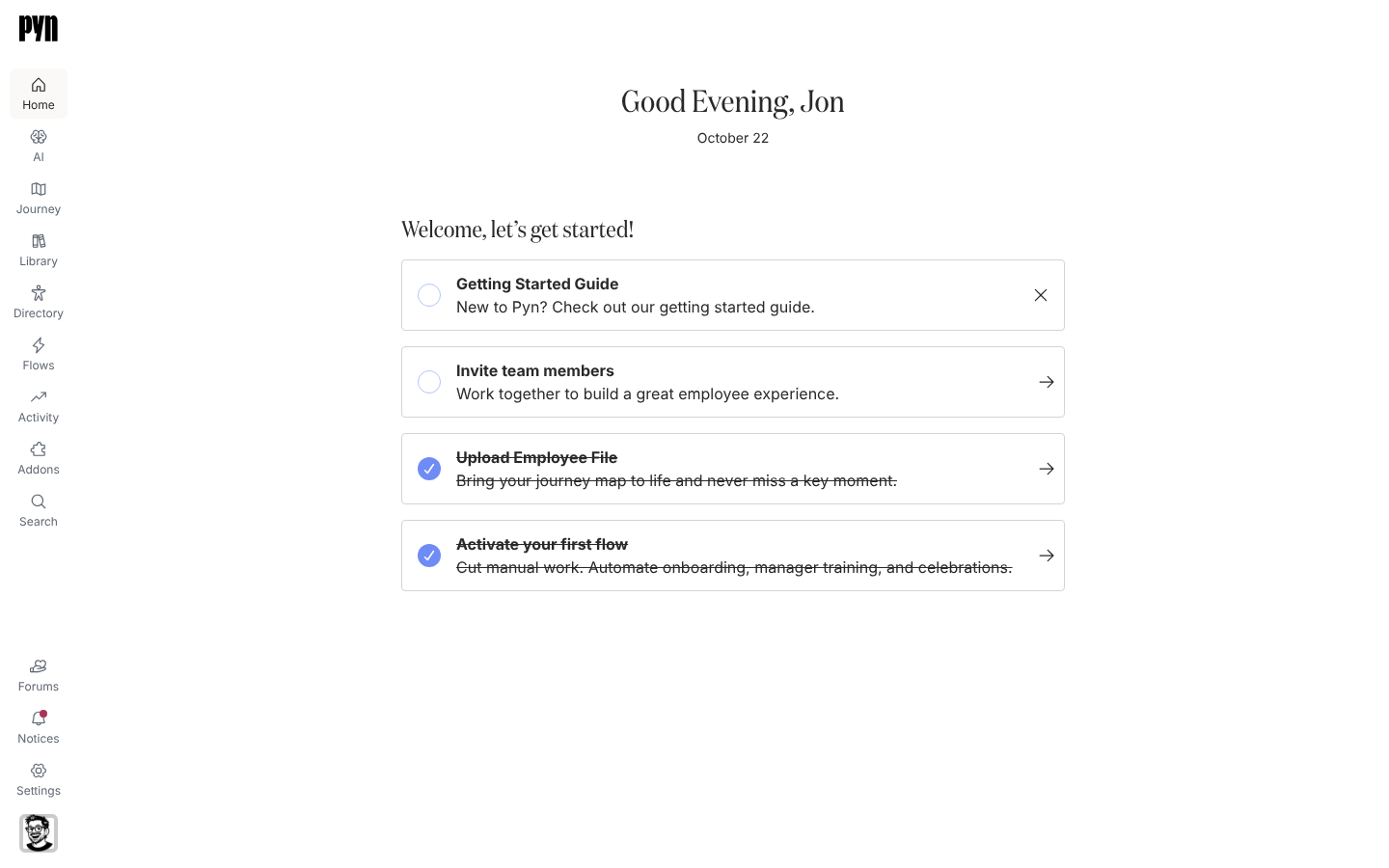
Home now shows admins Get started with Pyn: a progress bar and a row of step cards for the things a working workspace needs, from people data and a channel to a live flow, a campaign, a library page, a form and a look at Activity. Each card’s button opens the place in the app where you do that step, and Pyn works out from the workspace itself which steps are done, so you can do them in any order. Select the X on a card to mark a step Not for me, or Hide getting started from the heading’s menu to take the section off Home for everyone. Complete the getting-started checklist
Send to any employee group
Section titled “Send to any employee group”A campaign step can now go to any kind of employee group: demographic, lifecycle, filter, static or relationship. Pick as many as you need under To; each is listed with how many employees it holds and its kind, and everyone in them receives the step. Create a campaign
An automation step can do the same through Specific employee or group…: choose one person, such as your payroll lead, or one group, and every enrollment sends to them. The groups are listed before you type, each with its member count. Choose recipients and Cc
Find a message in All Messages
Section titled “Find a message in All Messages”Filters on Activity, All Messages now has Employee and Source: narrow the list to one person’s messages, or to the automations and campaigns you tick, alongside Status. Sort starts on Newest first and offers Oldest first, Recently delivered, Recently created and a sort that puts scheduled, completed or draft messages first. A campaign message names its campaign under Delivery. Messages
Export a group’s employees
Section titled “Export a group’s employees”Open any employee group and select the export button beside Group Employees: to download its members as a CSV named after the group. Every kind of group exports, including the demographic and lifecycle groups Pyn seeds. Export a group’s employees
Switch a campaign message between email and Slack
Section titled “Switch a campaign message between email and Slack”A draft campaign message can change channel without being rebuilt: open its menu and select Switch to Slack or Switch to Email. The message and subject stay, you choose a sender for the new channel, and recipients the new channel cannot reach are dropped. The option is offered while the step reads Draft or Manual. Create a campaign
Each step in the calendar sidebar now carries a glyph before its date that says whether it is a draft, scheduled, sending or delivered, and a campaign’s panel shows Created by under Moment, including campaigns started from a template or duplicated. Campaign states
Search the Campaigns calendar
Section titled “Search the Campaigns calendar”Above the campaigns listed for the month or year in view, Search campaigns and steps finds a campaign by part of its title, or by part of a step’s title (the subject, or the first line of a message with none); a campaign matched through a step lists only the matching steps and opens so you can see them. Create a campaign
Static groups in their own view
Section titled “Static groups in their own view”Employee Groups has a Static view, so the groups you built by hand are in one place beside Demographic, Lifecycle and Filter, and Search in the navigation finds them by name. Employee Groups
Start a campaign from a template on the calendar
Section titled “Start a campaign from a template on the calendar”On the Campaigns calendar, the arrow beside Create new offers Create from template, so admins can pick a ready-made campaign from the catalogue without leaving the calendar. Create a campaign
Lay out an email left, centered or full width
Section titled “Lay out an email left, centered or full width”An email step’s Advanced tab now has an Email format choice. Centered, the default, keeps the message in a column up to 600 pixels wide in the middle of the mail client; Left pins that column to the left edge; Full width lets the message span the whole window. It applies to a composed message, including the test you send yourself, and the choice disappears once Email body is Raw HTML. Add an email step
Campaign email steps have the same Advanced tab and, where Raw HTML email is enabled for your workspace, the Email body switch from a composed message to Raw HTML. Create a campaign
Also new
Section titled “Also new”- Upload several media files to the Library at once; a file that fails does not stop the ones after it. Upload media
- Where your workspace has an Equipment Pickup Office field, turn it into a demographic with a group per office. Create a demographic
- Admins see a Schema size on an MCP server’s Advanced tab: the kilobytes and approximate tokens its tool list takes up in a connected AI assistant, with a note once the list passes 256 KB. Add an MCP server
Fixes and improvements 94
- Campaign message lists now show whether each message is a draft, scheduled, sending or delivered.
- Search results now use larger text, pictures and rows to make them easier to read.
- The retired Addons area no longer appears in navigation.
- Automation, campaign and journey pages no longer show the old setup banners and prompts.
- The Library upload dialog now clearly explains that you can add several files at once.
- Home’s setup heading now keeps a matching fallback font if its usual font cannot load.
- Help Centre guides now reflect the setup checklist, campaign controls, employee exports and employee-file behavior, with corrections to earlier guidance.
- More Help Centre guides are available and up to date in Dutch, German, Spanish, Japanese and Simplified Chinese, with corrections to translated wording.
- Connected AI assistants now receive clearer instructions about the information required to filter, sort and schedule work in Pyn.
- You can find product updates under Shipping news in the Help Centre, with a new sailing-ship illustration.
- Help Centre pages no longer show migration notes linking to old articles.
- Help Centre guides now explain Slack mentions, email layouts, integration choices and more failure messages.
- Dutch, German, Spanish, Japanese and Simplified Chinese Help Centre guides now reflect more recent changes and include wording corrections.
- Recipient pickers now show group member counts and clearer icons for each kind of recipient.
- Delivery schedules now display in their resolved time zone, with older deliveries using your browser’s time zone.
- Navigation now uses hand-drawn illustrations, and employee lists show larger profile pictures.
- Disabled automation steps now use a striped background instead of crossing out their titles.
- Built-in Directory views now keep a consistent layout and no longer offer Export in their view menus.
- Campaign lists and journey boards now show properly sized loading placeholders, including in Safari.
- More Help Centre guides are translated into Dutch, German, Spanish, Japanese and Simplified Chinese, with further wording corrections.
- Help Centre guides now reflect updated recipient choices, campaigns, uploads, schedules and failure messages.
- Greenhouse connection guidance now clearly asks for current connection credentials instead of retired API keys.
- Long selected values now fit inside their fields instead of overflowing them.
- A failed attempt to close, archive or acknowledge a notice now shows an error.
- Failed ADP, Ashby, Greenhouse and HiBob connection requests now show an error instead of silently returning to the form.
- Connect to Slack now opens the installed Slack integration so you can reconnect it when needed.
- Campaign messages now show a link to their campaign in All Messages and delivery activity.
- All Messages now loads its default date order more efficiently and places undated messages last.
- Failed edits now show an error, including an explanation when you lack permission to save the change.
- Rehired employees no longer inherit a previous employment’s termination date when Pyn determines their current stage.
- Views with large filter selections no longer depend on fitting those selections into a web address.
- Slack test messages now come from the sender chosen on the message.
- ADP employees now receive their tenure date from their primary work assignment.
- Employee File now takes priority over Classic employee data, treats blank status as active and marks employees removed by subsequent uploads as inactive.
- In Classic, searching for text containing brackets, plus signs or other special characters no longer crashes the results.
- In Classic, more employee, scheduling and automation selectors now have correctly associated labels for screen readers.
- In Classic, filter choices now retain focus when the surrounding page updates.
- In Classic, screen readers now identify more editor, calendar, pagination, color, navigation and dialog controls.
- In Classic, screen readers now identify message, title and signature editing fields.
- In Classic, screen readers now identify the remove button on a selected value and say which value it removes.
- In Classic, screen readers now identify embedded videos and forms and skip the decorative Teams preview picture.
- Screen readers now skip decorative loading headings and checkboxes and hear a loading message in table placeholders.
- Screen-reader navigation through Slack message previews no longer treats each code block as a separate page section.
- The AI connection screen now presents its tool lists in a clearer heading order for screen readers.
- You can now reach and activate the Refresh action on error pages using the keyboard.
- You can now focus and scroll a message’s reading area using the keyboard, including in Safari and Firefox.
- Clicking anywhere in a date field now opens its calendar where the browser supports it.
- ADP refreshes now allow more time to establish a connection before timing out.
- Back from an automation editor now returns to the page and journey moment you opened it from.
- Single sign-on now explains when the email address you entered is invalid.
- Reconnecting integrations now preserves their custom fields and role assignments.
- Failed BambooHR, Google Workspace and Microsoft 365 connections now explain whether permission was denied, the attempt expired or another problem occurred.
- Creating an automation, form or poll, or adding a template, now shows an error when it fails.
- Failed view exports, data exports and workspace creation now show an error instead of silently stopping.
- In Classic, employees in Cyprus can again receive a default time zone when their location does not identify a specific city or region.
- Early Access and Waitlist integrations now appear in Available, and archiving BambooHR or Rippling updates the integration lists without a reload.
- A failed user-role assignment now shows an error.
- Current Users and Inactive Users now sort email addresses alphabetically regardless of capitalization.
- A failed user invitation now shows an error and lets you retry with the address and role you entered.
- The sign-in error message now uses the correct spelling of “occurred”.
- Screen readers now identify the fields for pasting email lists and renaming automation steps.
- Viewing selected library content while editing a Read More widget no longer also saves the widget.
- Journey totals and their changes now use the same number formatting for your browser’s language.
- Screen readers can now read Pyn account emails with the correct language and skip decorative images.
- In Classic, screen readers no longer announce the layout of notification emails as data tables.
- Screen readers now identify more picture, group-type and action columns in tables.
- Screen readers now identify editable message links and widgets as buttons.
- In Classic, copying a calendar feed link now confirms it was copied only after the copy succeeds.
- You can now open more employee, group, moment, form and workflow rows and automation cards using the keyboard.
- Typing a letter now selects matching options in more scheduling, editing, invitation and settings menus, with clearer names for screen readers.
- Screen readers now identify the button that opens the Publish menu.
- Sign-in now clearly explains when single sign-on is not set up for an email domain.
- Choosing a workspace after signing in now works on the first click.
- Stopping an enrollment now cancels all never-sent messages, including those belonging to overdue steps.
- Verifying several enrollments at once now schedules their deliveries promptly instead of waiting for a later refresh.
- Moving a message or campaign on the calendar now updates the schedules of its unsent deliveries.
- Filtering All Messages by Status now returns matching messages instead of an empty list.
- Edits that leave an automation unchanged no longer enable Publish or claim there are new changes to publish.
- Email delivery failures now distinguish a missing personal email address from a missing work address.
- Message editor dialogs now give fields the available width and proper spacing.
- You can remove a chosen AI connection operation by pressing anywhere on its row, including with the keyboard.
- Help opened from a static employee group now shows the relevant group guide.
- Failed attempts to resend bounced deliveries now show an error and leave the dialog available to retry.
- Failed attempts to add an email sender, custom recipient or domain now show an error while preserving the entered values.
- Creating a form webhook or creating or replacing its secret now reports failures instead of silently doing nothing.
- Notice settings and employee source disconnection now report when a change fails to save.
- More Workday time zones now resolve correctly, including Canadian locations and daylight-saving offsets.
- Classic calendar subscriptions no longer fail when the saved feed is already up to date.
- Invited users now appear in Current Users as soon as their invitation is sent.
- New custom email recipients and senders now appear in their lists immediately.
- Adding an existing email recipient or sender again now preserves its verification and time zone.
- Clearing Company Name now falls back to the workspace name instead of restoring the old value.
- Bounced-delivery resend dialogs now open correctly, and notices update immediately after resending, acknowledging, archiving or closing them.
- Pausing or scheduling a message now updates its controls and refreshes its delivery status without a page reload.
Release notes: 2 November 2026, 3 November 2026 and 6 November 2026.