

OpenID Connectプロバイダーを接続する
あなたのIDプロバイダーはOpenID Connectに対応していて、そのプロバイダーで従業員をPynにサインインさせ、ロールも決めさせたい、という状況です。Single Sign-On連携はプロバイダー、そのissuer、認可コードフローのクライアントを受け取り、プロバイダーのOpenID設定を確認して、必要なリダイレクトURIとサインインリンクを表示します。
- あなたがPynの管理者またはオーナーで、ワークスペースでSingle Sign-On連携が有効であること。
- プロバイダーで機密クライアントを作成できる人がいること(「The client needs the standard authorization code flow and a client secret.」)。Pynは
openid、profile、emailのスコープを要求します。ロールのマッピングにはIDトークンにgroupsクレームが必要で(Entraはrolesを発行します)、そのクレームを取得するためのスコープがあればAdditional Scopesに入れます。 - issuer、クライアントID、クライアントシークレットがあること。KeycloakではKeycloak Server URLとRealmが必要で、Pynはそれらからissuerを組み立てます。
-
Pynで左のナビゲーションのSettingsを開き、Integrationsの下のAvailableを開きます。
-
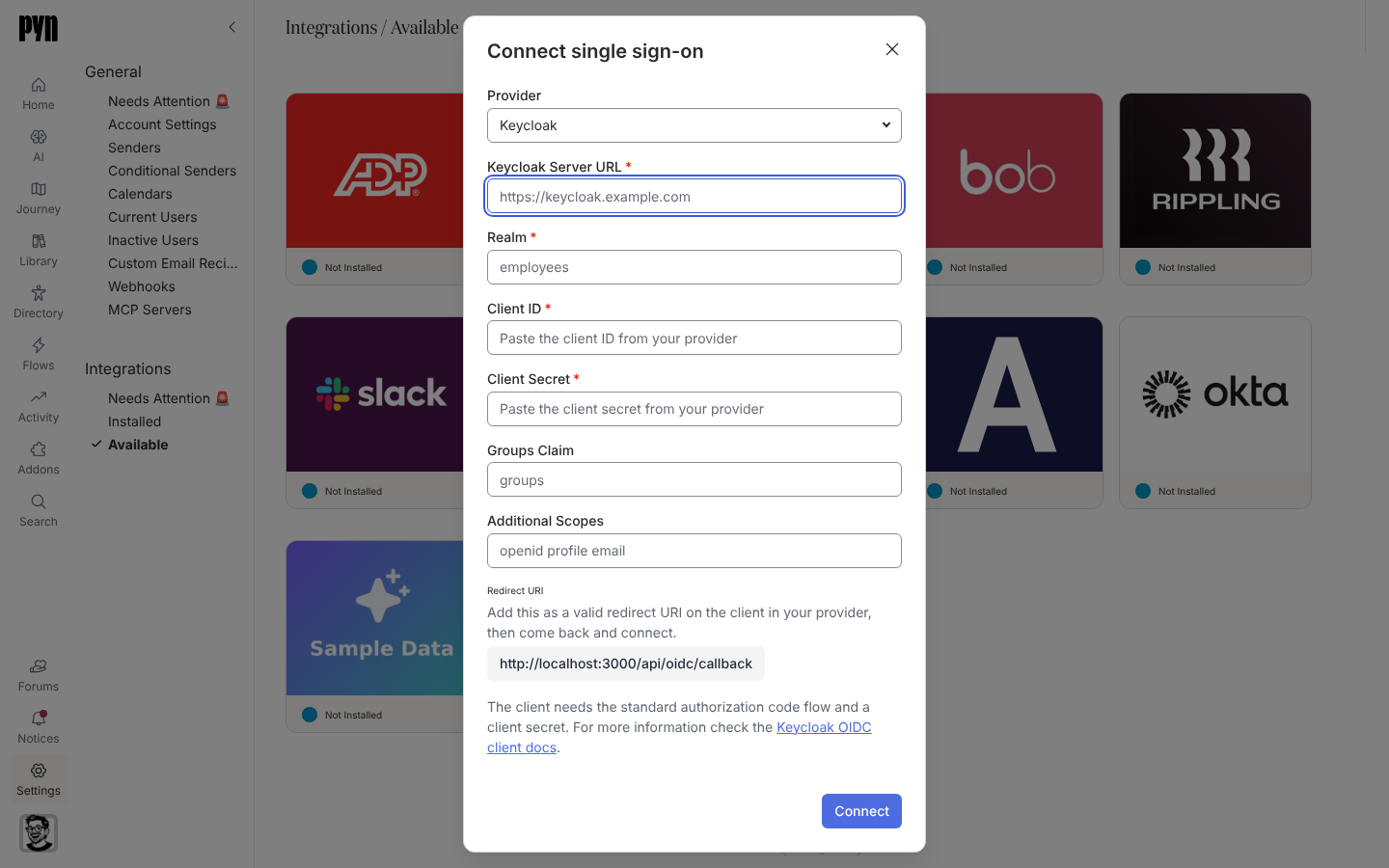
Single Sign-Onのタイルを選びます。Connect single sign-onダイアログが開きます。
-
ProviderをKeycloak、Okta、Microsoft Entra ID、Auth0、Ping Identityから選びます。それ以外のプロバイダーではSingle Sign-Onを選びます。
-
KeycloakではKeycloak Server URLとRealmを、それ以外ではIssuer URLを入力します。
-
Client IDとClient Secretを入力します。プロバイダーが
groups以外の名前を使うならGroups Claimを、openid profile email以外のスコープが必要ならAdditional Scopesを設定します。 -
ダイアログに「Add this as a valid redirect URI on the client in your provider, then come back and connect.」という説明付きで表示されたRedirect URIをコピーします。
-
Connectを選びます。ダイアログには「Checking those details with your provider…」と表示され、続いて「Single sign-on is configured. Use the sign-in link on the integration to let your people sign in with it.」という通知が出ます。
-
パネルのGroup mappingsで、Owner groups、Admin groups、Power user groups、User groupsにカンマ区切りのグループ名を、オーナーから順に入力します。
確認できること
Section titled “確認できること”タイルはInstalledでActiveを表示し、パネルにはRedirect URIとSign-in linkが表示されます。Sign-in linkの説明は「Share this with your people to sign in through your provider. Opening it signs you in.」です。ダイアログが接続を拒否した場合は、表示された理由を確認します。「That address answered, but not with an OpenID configuration.」は、issuerがプロバイダーの設定が公開されているベースURLではないことを意味します。「Could not reach that issuer.」はインターネットから到達できないことを、「The issuer needs to be a full URL, starting with https://.」は形式の問題を意味します。「An unexpected error occurred. Please check the details and try again. If the error persists, contact support.」はリクエストが届かなかったことを意味するので、もう一度試します。メニュー(…)のReconnectでダイアログを再び開き、どの項目でも変更できます。