

オートメーションのモードを変更する
モードは、トリガーが人をエンロールしてよいか、そしてそのステップが確認なしに送信されるかを決めます。新しいオートメーションはManualから始まります。よくある流れは、最初の数件のエンロールメントを確認する間はVerificationにし、その後Automatedにすることです。
- モードの変更には管理者またはオーナーのロールが必要です。
- 先に公開してください。モードはエンロールメントを制御しますが、実行されるステップは公開済みバージョンのものです。未公開のドラフトがあるAutomatedモードのオートメーションは、最後に公開したバージョンに人をエンロールします。
-
Pynで、左ナビゲーションのFlowsを開き、Automationsを選んで、オートメーションを選びます。
-
上部のモードボタン(Automated、Verification、Manualのいずれかと表示)を選び、Change Modeを選びます。Inactiveのオートメーションでは代わりにUse Thisと表示されるので、それを選びます。
-
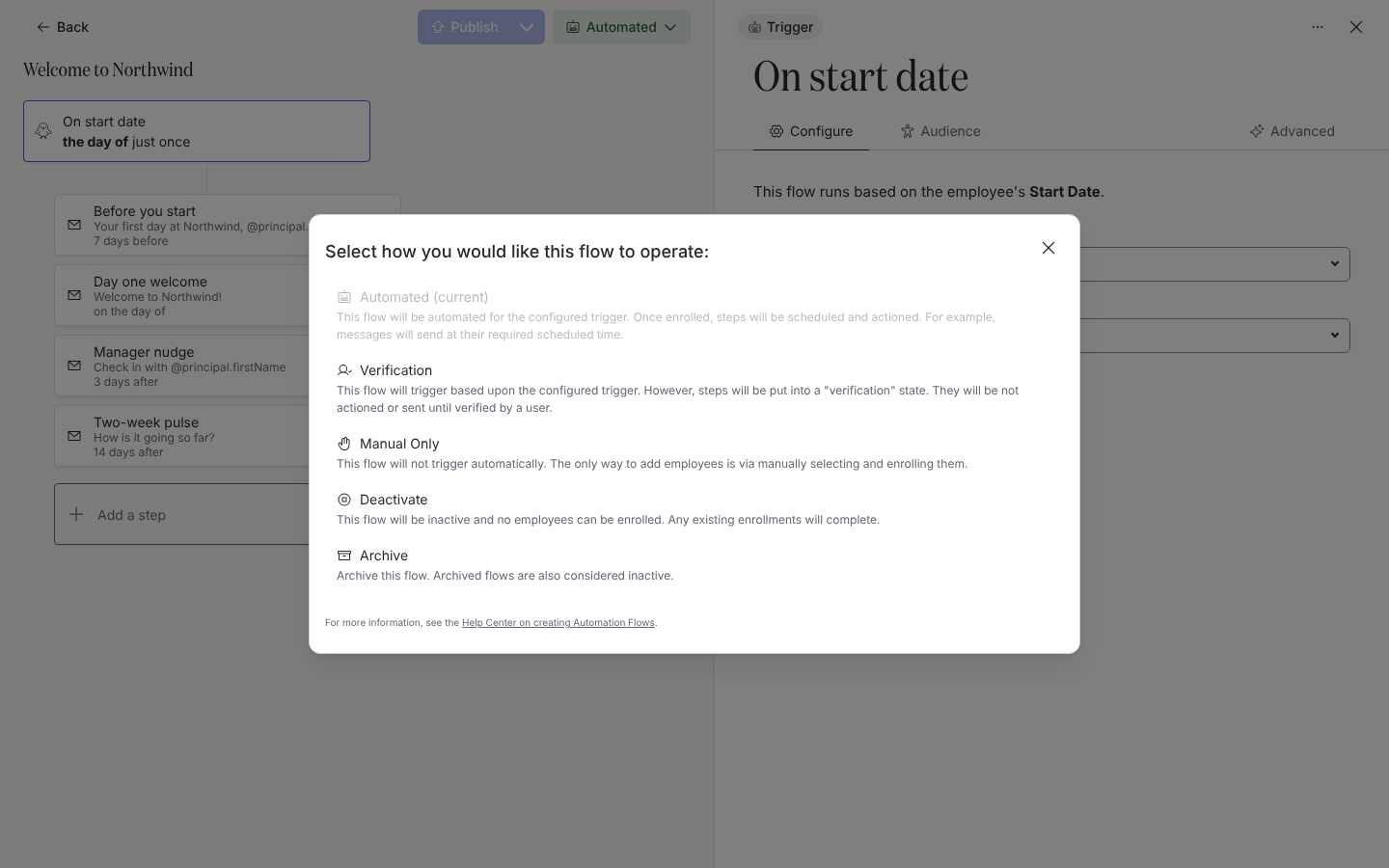
「Select how you would like this flow to operate:」で、次のいずれかを選びます。
- Automated:「This flow will be automated for the configured trigger. Once enrolled, steps will be scheduled and actioned. For example, messages will send at their required scheduled time.」
- Verification:「This flow will trigger based upon the configured trigger. However, steps will be put into a “verification” state. They will be not actioned or sent until verified by a user.」
- Manual Only:「This flow will not trigger automatically. The only way to add employees is via manually selecting and enrolling them.」Form Submissionのオートメーションではグレーアウトされています。
- Deactivate:「This flow will be inactive and no employees can be enrolled. Any existing enrollments will complete.」
- Archive:「Archive this flow. Archived flows are also considered inactive.」ここでのArchiveは確認なしに即座に適用されます。
-
ダイアログが閉じ、モードボタンが更新されます。Automatedを選ぶと「Congrats! Your automation is fully automated.」と表示されます。
確認できること
Section titled “確認できること”AutomationsテーブルのStatusチップが新しいモードと一致します(VerificationはVerify)。Verificationでは、新しいエンロールメントが一時停止の状態でNeeds Reviewに現れます。Automatedでは、ステップがスケジュールされたPendingの状態でAll Enrollmentsに現れます。Inactiveでは新しい行は現れず、既存のものが完了します。
- オートメーションを公開する:バージョンとエンロールメントの更新についてです。
- オートメーションとエンロールメントの状態:モードがエンロールメントの状態にどう対応するかです。
- エンロールメント:確認と一時停止の解除についてです。