

オートメーションを作成する
ワークスペースに新しいオートメーションが必要です。トリガーを軸にゼロから組み立てるか、Pynのテンプレートからコピーして、トリガー、タイミング、文面がすでに揃った状態から始めるかのどちらかです。どちらでも、形を整えて公開できるドラフトとともにエディターにたどり着きます。
- パワーユーザー、管理者、またはオーナーであること。オートメーションの作成、複製、アーカイブ、公開には管理者またはオーナーのロールが必要です。パワーユーザーは編集と手動エンロールができます。
- オートメーションがどの節目のためのものかを把握しておきます。トリガーカタログが節目とトリガーを対応づけています。
-
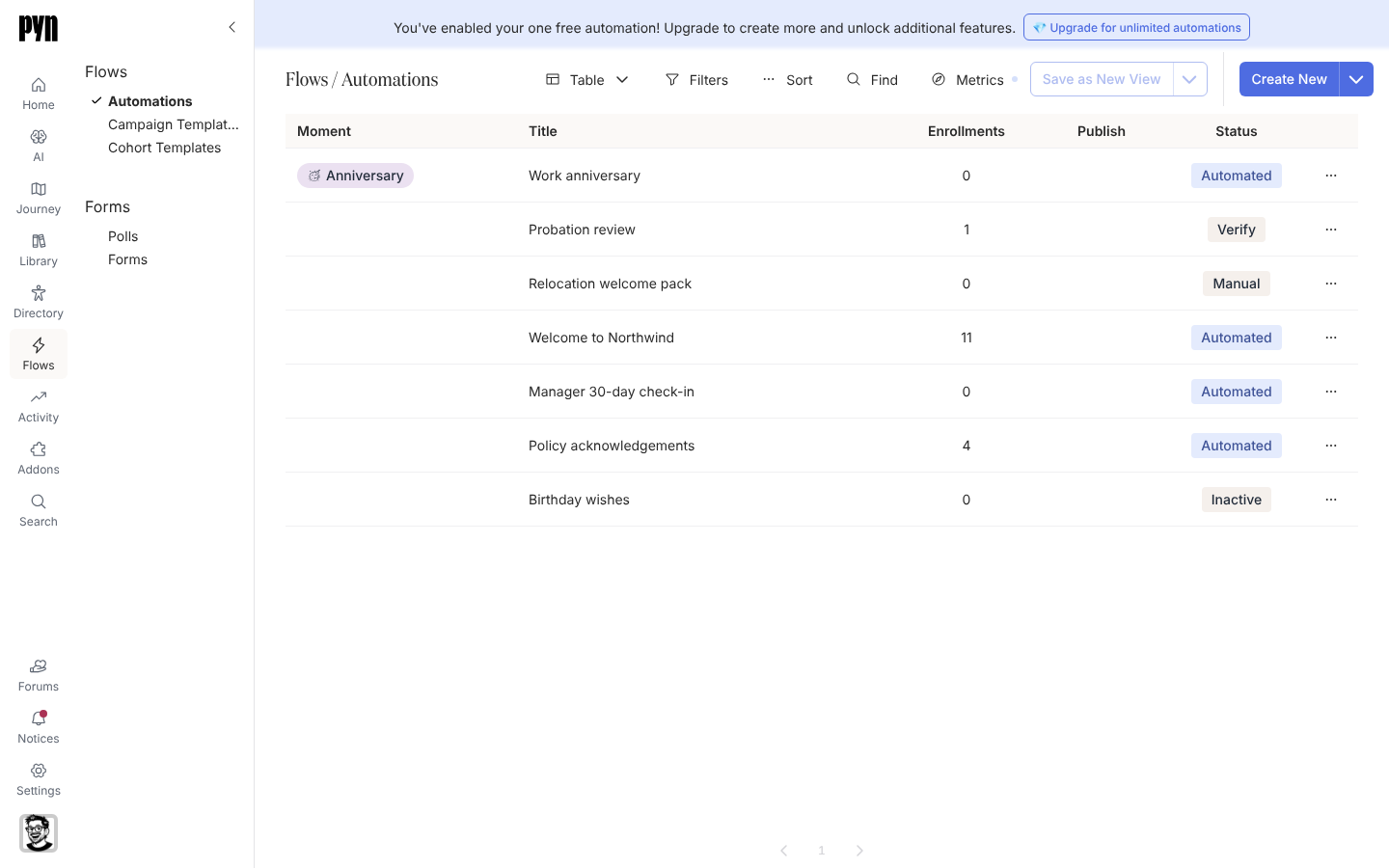
Pynで、左ナビゲーションのFlowsを開き、Automationsを選びます。
-
トリガーから始めるには、Create Newを選びます。Select Triggerダイアログが開き、左にカテゴリーが並びます。Employee Lifecycle、Dates and Schedules、Team and Org Changes、Form Submission、Employee Properties、Leave Based、Sales Enablement、Support Enablement、Otherです。
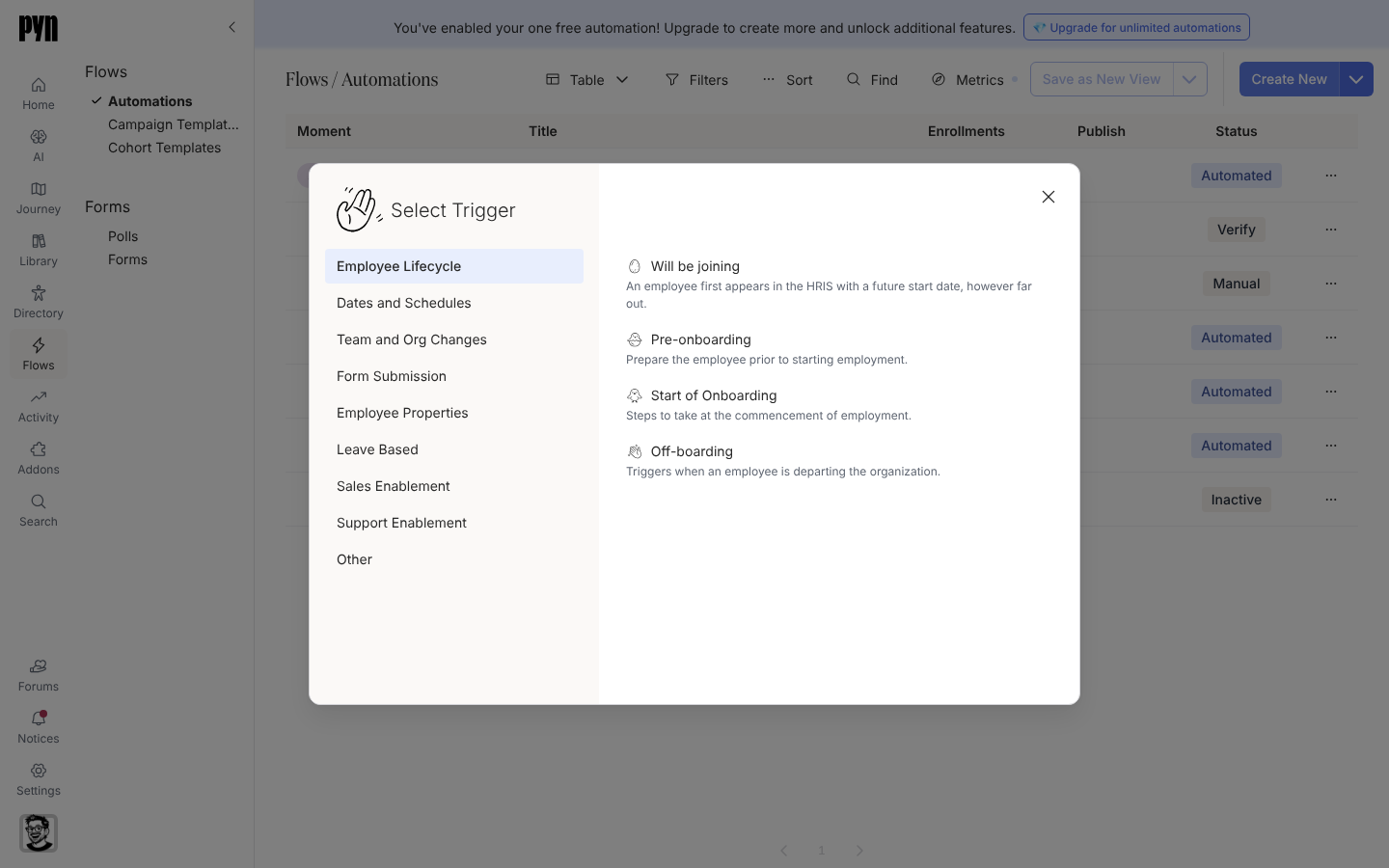
Select Trigger lists the categories on the left and each category's triggers with a one-line description. -
トリガーを選びます。PynはオートメーションをManualモードで作成し(Form SubmissionトリガーはVerificationで始まります)、トリガーのサイドパネルを表示した状態でエディターを開きます。オートメーションを作成できない場合は、Could not create the automationというトーストが表示されます。
-
代わりにテンプレートから始めるには、Create Newの横の矢印(管理者とオーナーに表示)を選び、Add from Templateを選びます。Add from Templateダイアログには、オートメーションとキャンペーンのテンプレートがジャーニーのカテゴリーごとに並びます。1つ選ぶと、Pynはそれをモーメントに紐づけた状態でワークスペースにコピーし、開きます。コピーに失敗した場合は、Could not add the templateというトーストが表示されます。
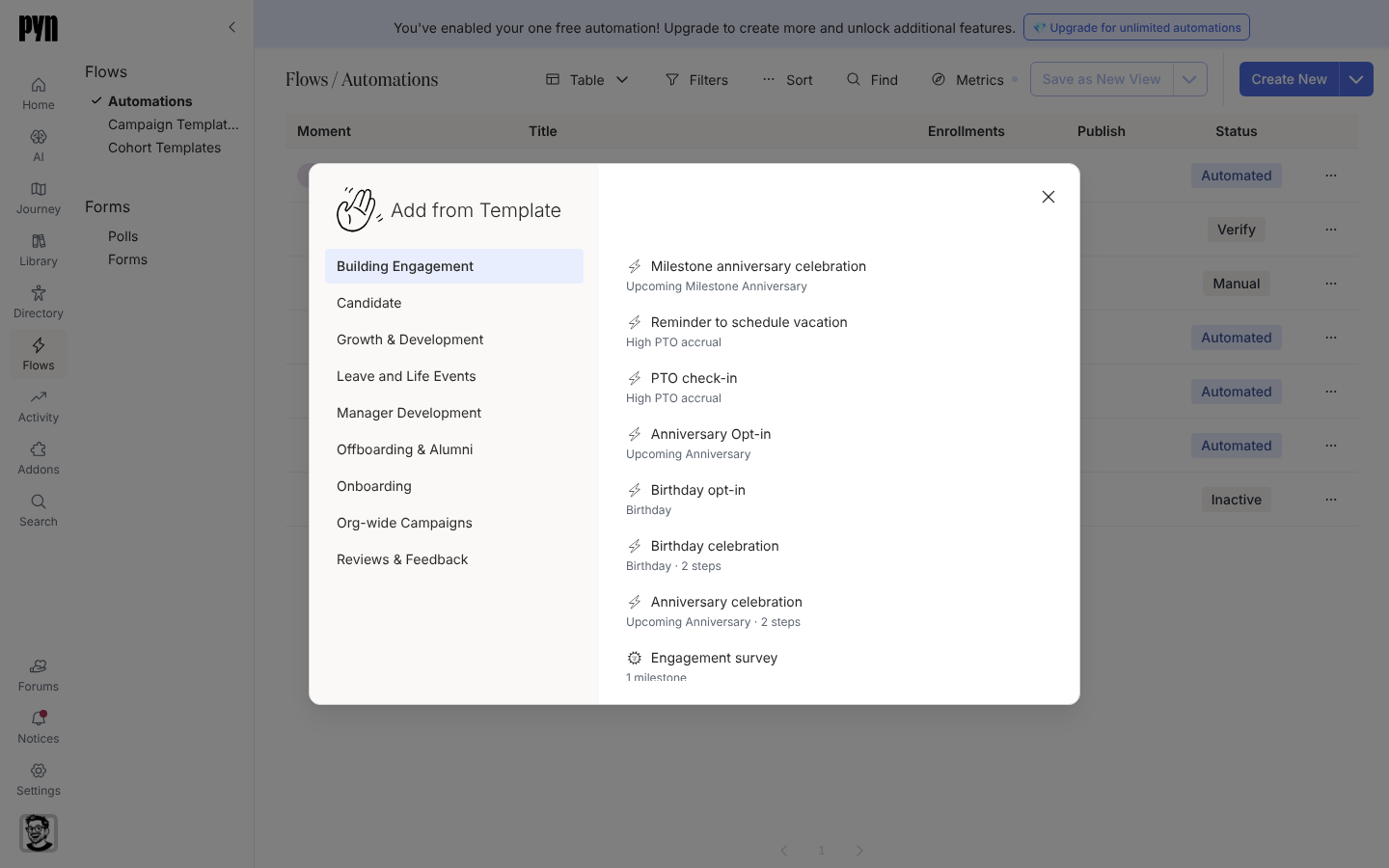
Add from Template copies a ready-made automation into your workspace. -
エディターの左上にある、「(Untitled)」と表示されたタイトル欄を選び、名前を入力します。タイトルは入力するそばから保存されます。
-
トリガーのサイドパネルのタブConfigure、Audience、Exit conditions、Advancedを順に進め、Add a stepを選んで連なりを組み立てます。ステップごとに専用のサイドパネルが開きます。受信者、送信者、スケジュールはステップとメッセージのページで扱っています。
-
ドラフトが整ったらPublishを選びます。その後、その隣のモードボタンを開き、Change ModeでオートメーションをVerificationまたはAutomatedに移します。
確認できること
Section titled “確認できること”オートメーションがAutomationsテーブルに、付けたタイトル、モードを示すStatusチップ(VerificationはVerify)、件数が0のEnrollmentsとともに現れます。ドラフトに未公開の変更がある間、Publish列にはRequiredと表示されます。
- トリガーを選ぶ:節目に合うファミリーを選ぶ方法です。
- オートメーションのオーディエンスを設定する:エンロールする人を絞る方法です。
- オートメーションのモードを変更する:オンにする方法です。
- ステップとメッセージ:ステップの中身のすべてです。