

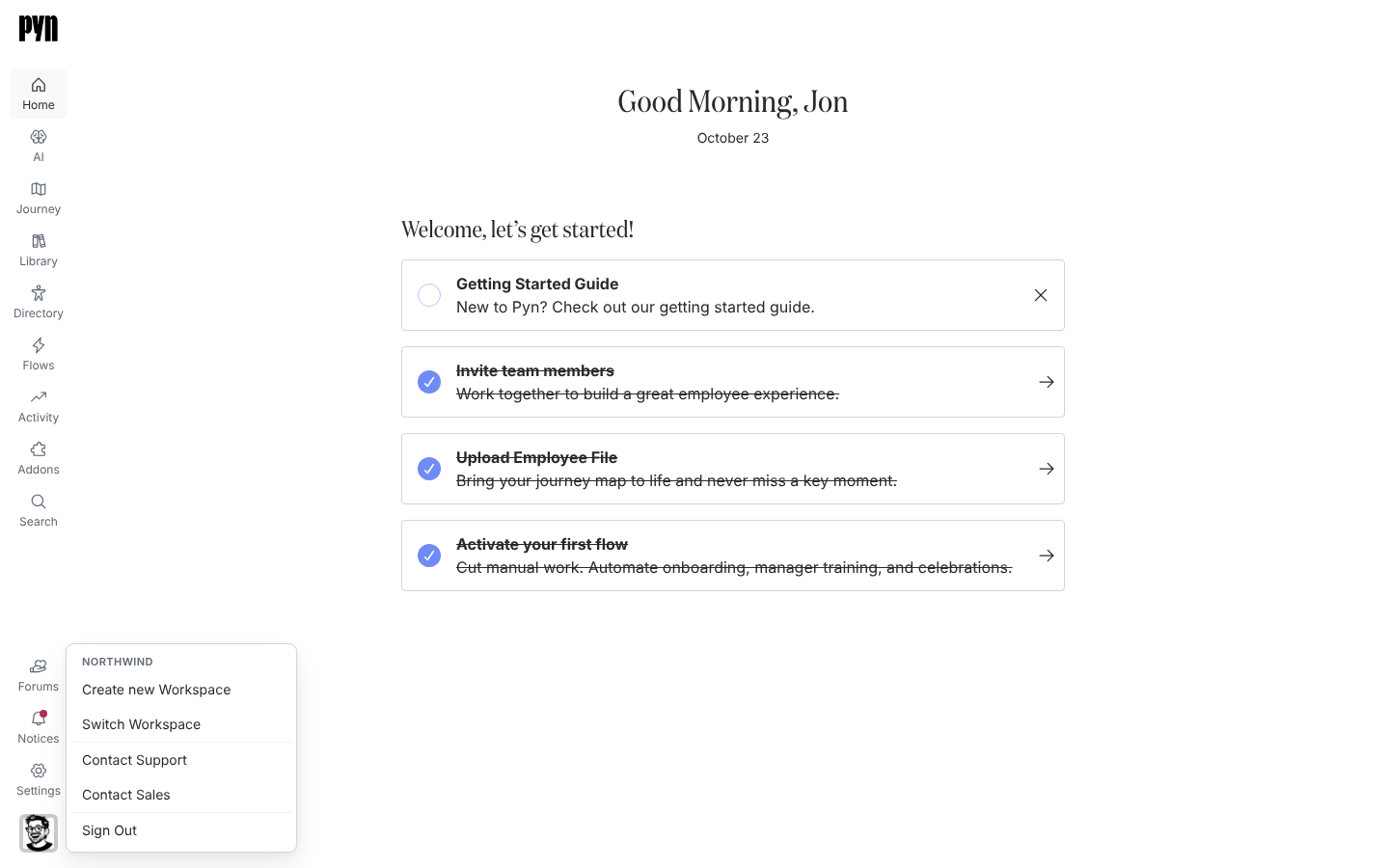
Pyn now has a dark theme. Open the profile menu in the corner and choose Light or Dark under Theme; the choice is kept by that browser, so your laptop and your phone can each have their own. Navigation, editors, panels, avatars and form controls all follow it, and the page no longer flashes white while it loads. Profile
Update active enrollments to the latest version
Section titled “Update active enrollments to the latest version”After you publish a change to an automation, Pyn offers to move the enrollments still running on the previous version across to it. Pick the enrollments to update; steps that are already sending or sent stay as they are, and Update Active Enrollments on the mode menu makes the same offer later. Publish an automation
Conditional recipients
Section titled “Conditional recipients”Admins can create a named list of audience rules that decides who a step goes to, with a fallback recipient for anyone no rule matches. Choose it under Conditional Recipients in a step’s To or Cc. Choose recipients and Cc
Connect an AI assistant to your workspace
Section titled “Connect an AI assistant to your workspace”Admins can add an MCP server under AI, Agents, MCP Servers, from scratch or from a preset such as People Directory or Onboarding Coordinator, and choose the operations it offers and the role it needs. Before an assistant connects, the person reviews the tools it will get, grouped into what it can read and what it can change, and every tool runs with that person’s own permissions. Add an MCP server
Stop an enrollment when someone leaves the audience
Section titled “Stop an enrollment when someone leaves the audience”Give an automation exit conditions: audiences the employee must keep matching. When they move team, country or lifecycle stage, the enrollment closes and nothing further sends. Set exit conditions
Moments with their own trigger
Section titled “Moments with their own trigger”A Journey moment can have a trigger and an audience of its own, so employees count as being in it, and its Employees metric reflects them, without an automation or an enrollment. Add a trigger to a moment
Also new
Section titled “Also new”- Send yourself a test email while signed in, even without an employee record. Preview and send a test
- Rename a verified email sender; recipients see the new name on its emails. Add an email sender
- Where AI context is enabled for your workspace, admins can add background information to employees, groups, enrollments and the workspace for AI agents to use.
- Pyn Help, this site, brings searchable guides, tutorials, screenshots and videos together, with Shipping news each week.
- Search the emoji picker by name; it now offers more than 1,500 emoji in fifteen categories.
- Pyn Help adds twelve use-case guides, from onboarding to celebrations. By use case
- Schedule an automation step Immediately or a chosen time after its trigger, instead of an offset from the reference date. Schedule a step
- Send a step to a Specific employee or group…: the same person for every enrollment, such as your payroll lead. Choose recipients and Cc
- Cc people on a Slack step: each Cc gets a message of their own, without the main recipient’s actions, reminders or escalations. Cc on a Slack step
- Where the HiBob webhook is enabled for your workspace, start an automation from an employee event Bob reports, with an optional filter on which events qualify. Choose a trigger
- Where Raw HTML email is enabled for your workspace, insert a Raw HTML Block of your own markup between the usual content blocks of an email. Format a message
- Select Help in the left navigation, or press
?, to open a searchable Help sheet with the guide for the page or item you are viewing. Get help inside Pyn - What’s New in the profile menu opens Shipping news. Profile
- Admins can give AI agents skills, named sets of instructions for one job, and enable or disable them under AI, Agents, Skills. Add a skill
- Read Pyn Help in Dutch, German, Spanish, Japanese or Simplified Chinese from the language selector in the header; it opens in your browser’s language on your first visit and remembers your choice.
- A Buddy or Mentor field in a form opened from an email is a name search: the respondent types two or more letters and picks from the matches, for fourteen days after the message was created. Form field types
Fixes and improvements 122
- Journey boards and item panels now show loading placeholders that match their layout instead of appearing blank or shifting as content arrives.
- A moment’s trigger and audience are now managed on its Rule tab, with redundant entries removed from Details.
- The Classic campaigns calendar now loads less data to display the same campaign information.
- The Help Centre’s product updates are now called Shipping news.
- More Help Centre guides are available in Dutch, German, Spanish, Japanese and Simplified Chinese, with corrections to translated wording.
- Help Centre guides now reflect the latest form, delivery and journey changes, with AI connection guides grouped under AI.
- The Help Centre now opens in a supported browser language on your first visit and remembers your language choice.
- Pyn now follows your device’s light or dark appearance by default, with compact controls to choose Light, Dark or System.
- Before connecting an AI assistant, you can review clearly named tools grouped by whether they read or change data.
- Connected AI assistants can look up field descriptions and available custom fields when given permission to do so.
- AI connection settings now link directly to setup instructions beside an easier-to-copy address.
- Light-mode controls now use more consistent warm colors, and automation trigger panels have clearer spacing.
- Message previews now start with the chosen named recipient, and sender and recipient details line up more clearly.
- Pyn Help now includes updated setup guides, screenshots and examples for AI connections, HiBob fields, message content and automation controls.
- You can choose from more than 1,500 emoji organized into fifteen categories.
- Email steps keep the Cc field tucked away until you need it, while always showing saved Cc recipients.
- Pyn Help now uses consistent illustrations and an updated example journey to make its pages easier to browse.
- Shared Help Centre links now include a preview image.
- Help Centre instructions and screenshots now better match current permissions, settings, schedules and message behavior.
- Pyn Help now includes the week of 26 October changelog and guidance on connecting AI clients where enabled.
- Dark mode now keeps navigation, editors, panels, avatars, icons and form controls readable, without a white flash on reload.
- On phones, navigation, view lists and page content now open one level at a time with buttons to return to the previous level.
- Audience pickers now search all employee groups, including those beyond the previous list limit.
- New Emoji 18.0 characters now display in Pyn’s monochrome emoji font.
- Buttons, cards and toggles now give clearer visual feedback when pressed.
- Raw HTML email fields now explain how to make text conditional and include an example.
- Campaign milestone colors now accept short three-digit color codes.
- Invited users now appear in Current Users as soon as their invitation is sent.
- New custom email recipients and senders now appear in their lists immediately.
- Adding an existing email recipient or sender again now preserves its verification and time zone.
- Clearing Company Name now correctly falls back to the workspace name instead of restoring the old value.
- You can open the resend dialog from a bounced-delivery notice again.
- Notices now update immediately after acknowledgment, archiving, closing or resending bounced deliveries.
- Pausing or scheduling a message now updates its controls immediately and refreshes its delivery status without a page reload.
- How to connect an AI client now opens the correct setup guide inside Help.
- Item panels now slide into view once instead of repeating the animation when their content finishes loading.
- Step audience pickers now stay open and keep your search while you select multiple stages or groups.
- Retyping a step’s send time no longer blanks the saved time or causes later automation edits to be lost.
- Employees removed in Classic now appear as terminated in Pyn instead of remaining upcoming joiners.
- Typing after updating a conditional message section now continues inside that section instead of jumping to the start of the message.
- Choosing a named recipient now shows their name immediately instead of temporarily labeling them unknown.
- Removing the step you are editing now closes its drawer instead of leaving an empty panel open.
- Delivery failures now retain more specific reasons for sender, recipient and provider problems instead of showing a blank or generic reason.
- Poll answers submitted from email now appear in Activity and exports even when a submission was not prepared before the response arrived.
- Form submission notices now identify invalid or missing fields by the names used in the submitted data.
- The form builder now stops adding fields at the ten-field limit instead of letting an extra field disappear when saved.
- New campaign steps created from templates now retain their milestone date so overdue steps can finish correctly.
- Failed add-on upgrade and demo requests now show an error instead of silently doing nothing.
- Campaign and automation controls now report failed enrollment, step creation, moment assignment, publishing and duplication.
- Journey controls now report when creating a moment or changing its stakeholders fails to save.
- You can now reach Add Moment on the Journey board with the keyboard and activate it with Enter or Space.
- Screen readers now identify more time fields, pickers and campaign selections while skipping decorative card images.
- In Classic, previewing sent automated messages no longer triggers an error, and action previews again resolve manager recipients correctly.
- Filter-based employee groups can now be archived without an error.
- A campaign step’s mode menu now closes after you choose Automated or Manual.
- Form exports now include submitted answers instead of replacing them with “undefined”.
- New form submissions received through a webhook now appear with the submitter’s name in Activity and exports.
- Manual enrollment now defaults to today’s date in your local time zone.
- Manual enrollment now warns when employees were skipped, including those enrolled in the same flow within the last five minutes.
- Audience previews now return to the first page when you change the audience instead of showing an empty list.
- Daily recurring automations no longer miss an enrollment because processing happened slightly earlier than the previous day.
- Campaign templates now use upcoming milestone and message dates instead of dates that have already passed.
- You can change whose picture appears in an Avatar widget using either the mouse or keyboard.
- You can now upload media and open a media item’s file using the keyboard.
- Screen readers now identify more date fields, selection controls and editor buttons while skipping decorative illustrations.
- Sign-in buttons now match dark mode without bright white backgrounds.
- Poll links now report failed votes instead of incorrectly saying the response was recorded.
- Form and poll editors now report failed saves and publishes and only confirm field removal after it succeeds.
- Account settings now report failed company-name or time-zone saves and restore the saved company name.
- Email verification and test sends now report failures instead of claiming an email was sent.
- Integration, calendar and custom email domain controls now explain when connection, activation, archiving or verification actions fail.
- A failed resend now shows an error and lets you try again.
- Flow controls now report failures when scheduling, unpausing, duplicating, updating, verifying, stopping or archiving messages and enrollments.
- View and record controls now report failed renames, duplicates, archives and restores.
- AI connection controls now report failed attempts to enable or disable a connection.
- Sample data setup now reports failed installs and reloads instead of silently stopping.
- In Classic, more Lever employees receive the correct time zone when their location names an office instead of a country.
- Failed form submissions now show an error message with clear spacing beneath the questions.
- Adding employees to a static group now accepts email addresses in any letter case and separated by spaces or semicolons.
- Removing an employee from a new static group’s selection no longer opens their profile over the form.
- A demographic with a blank title now uses the employee property’s name instead of creating unnamed groups.
- Restoring an archived demographic now restores its groups too.
- Archiving an automation now makes it inactive, and restoring it leaves it inactive until you deliberately switch it on.
- Assigning an automation to a moment now updates its moment label immediately.
- Content steps added from the template catalogue now show their content title instead of “Untitled”.
- Switching workspaces no longer briefly shows choices from the previous workspace in recipient lists and other lists that load more results as you browse.
- Navigation now retries loading when your internet connection returns instead of requiring a page reload.
- Add-on cards now show their full descriptions and status footers.
- Notices now show aligned dates and clearer sender names and email addresses.
- Fields in dialogs now use the available width and leave space between consecutive fields.
- Unexpected BambooHR report data now produces a clear history message without disabling the integration.
- Employee spreadsheet uploads now accept Excel date cells and numeric postal codes.
- Dark mode now keeps more text, avatars, icons and selection controls readable.
- In Classic, messages with failed deliveries no longer stay in Sending forever once all deliveries have finished or failed.
- In Classic, one slow Slack workspace no longer prevents other workspaces from syncing their channels and users.
- In Classic, more Lever locations now receive the correct time zone when their country field contains a state or region.
- Download buttons in Notices now save the export instead of opening a page-not-found screen.
- Media uploads now report unsupported files and failed transfers, and new uploads appear in the Library without a reload.
- Library content titles now save in full, and unpublished edits remain marked as drafts after a reload.
- You can discard content edits immediately after publishing in the same session.
- Restoring a previous content version now returns you to an editable draft with the restored title and body.
- Library and Activity filters now preserve selected options when you search within the list or press Escape.
- A single click now places the cursor in subject and message editors.
- Cancelling a conditional-section edit no longer leaves unwanted conditions or restores cancelled changes when you reopen it.
- Inserting message widgets into lists no longer removes existing list text.
- Typing in messages with many personalization placeholders is more responsive, and text entered in placeholder searches is preserved when you leave the search.
- Bulleted lists, numbered lists and blockquotes now retain their structure while you edit them.
- Employees now pick up their Slack avatar and other available Slack details as soon as their account is linked.
- Workday birthdays now preserve February 29, and invalid dates no longer interrupt employee mapping.
- Employee profiles now prefer current source records over dropped records from the same system.
- ADP syncing no longer skips workers when a page contains fewer records than requested or workers move across overlapping page boundaries.
- Rejected email senders now show a re-authentication notice, notify their owner and recover when SendGrid is reconnected.
- Microsoft 365 connection and delivery notices now appear in Notices.
- A Google or Microsoft calendar that stops syncing now raises a notice explaining how to reconnect it.
- The Google calendar picker now loads additional pages of writable calendars instead of stopping at the first page.
- Okta and OIDC integration panels now display their identity lists.
- Invited users who have not signed in now appear by email in moment Owner and Stakeholder pickers and can be found by search.
- User labels now show a name or email address when available instead of an internal identifier.
- Journey archive and restore drop targets now stay visible when you scroll the board, and restored moments appear without a reload.
- Clearing an unfinished moment title now cancels the draft instead of creating a blank moment.
- Recommended Automations now lists the birthday and anniversary templates in new free-plan workspaces.
- Titles and labels no longer overlap the Back or Close button in full-page dialogs on narrower screens.
Release notes: 26 October 2026, 27 October 2026, 29 October 2026 and 30 October 2026.