

Google Workspace
Google Workspace 为 Pyn 提供两样东西:Gmail 发件人,让电子邮件以某位同事的名义发出、回复进入其收件箱;以及 Google 日历,让流程可以邀请某人参加定期事件。两者都是按账户授权:一个人登录 Google 并允许 Pyn 访问,Pyn 只保存这份授权。集成磁贴的作用是显示已连接的账户和托管域名。
- 你是管理员或所有者;添加发件人或日历以及 Reconnect 对其他角色是禁用的。你需要亲自登录 Google;管理员无法替别人完成。对于其他任何人,无论有没有 Pyn 登录账号,请创建认证链接。
- 你的 Google Workspace 管理员可能需要为你的组织允许 Pyn 应用。
- Pyn 请求的权限范围:始终包括
userinfo.email和userinfo.profile;发件人需要gmail.send;日历需要calendar.calendarlist.readonly和calendar.events.owned。Pyn 无法读取你的邮件。
-
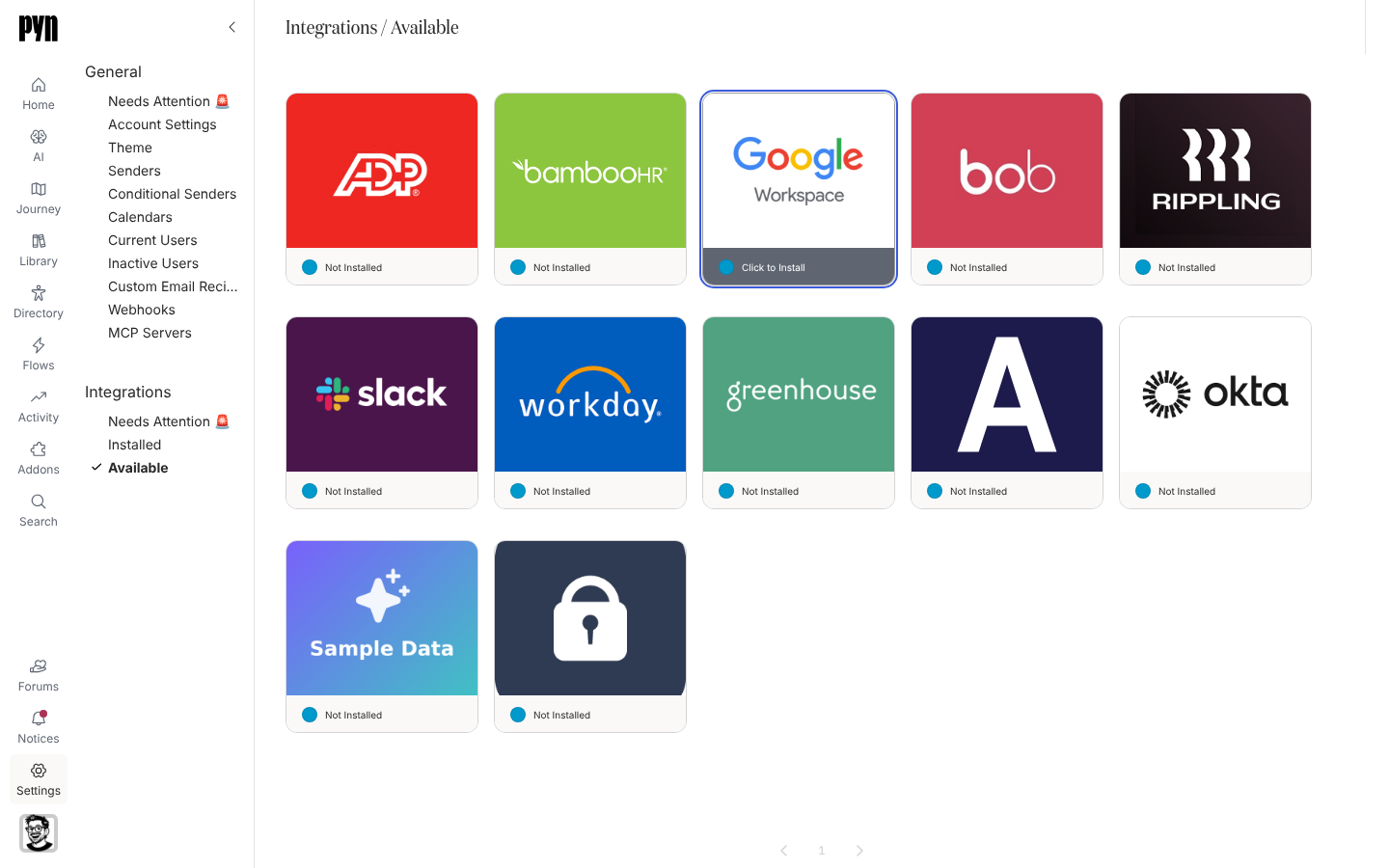
在 Pyn 中,打开左侧导航中的 Settings,然后打开 Integrations 下的 Available。
-
选择 Google Workspace 磁贴。Google 打开;选择账户并选择 Allow。这会把你的账户连接为发件人并安装集成。如果 Pyn 无法发起连接,标题为 Connect Google Workspace 的对话框会显示 “We could not start the Google Workspace connection. Please contact support.”
-
Google 把你带回 Pyn。磁贴移到 Installed 下并显示 Active,你的发件人出现在 Settings > General > Senders 下。如果你在 Google 处选择了 Cancel,或在那里停留太久,你会回到 Installed,并看到一条标题为 Google wasn’t connected 的提示说明原因:“You didn’t grant access, so nothing was connected.”或“The sign-in took too long, so nothing was connected. Try again.”
-
要添加更多发件人,每位管理员使用 Senders > Add > Add Google Email Sender;其他所有人通过认证链接连接。见添加 Google 或 Microsoft 365 发件人。
-
要添加日历,使用 Calendars > Add > Add Google Calendar 并选择要同步的日历。见连接日历。
- 发件人:姓名、邮箱和托管域名,在账户连接时读取;Refresh Details 会重新读取。如果失败,标题为 Refresh Details 的对话框会显示 “We could not refresh the sender details from Google. Please try again or contact support.”
- 日历:所选日历中的定期事件,包括开始时间、重复规则和事件自己的时区,这样邀请能在正确的当地时间送达。Pyn 大约每小时把每个活跃日历刷新一次;Refresh Events 立即拉取变更,如果无法拉取,标题为 Refresh Events 的对话框会告诉你。
- 投递:每封电子邮件和每条日历邀请都是一条投递,可以在活动记录中查看,并带有 Sender Error 或 Raw HTML Email Not Enabled 等退回原因。
集成面板的 Details 标签页显示 Hosted Domain;Senders 标签页列出每个已连接的 Google 发件人。
在 Senders 下打开一个 Google 发件人,打开它的 … 菜单并选择 Send Test;“Test Message Sent” 表示成功,邮件会以你的名义到达你的收件箱;如果没有发出,Test Message Not Sent 会给出原因。对于日历,在 Calendars 下打开它,等 “Pyn is syncing this calendar. This can take a few minutes.” 消失后检查它的事件列表。
重新连接或断开连接
Section titled “重新连接或断开连接”- 显示 Requires reauth 的发件人或日历为管理员和所有者提供一个 Reconnect 按钮;由该 Google 账户的所有者重新登录。如果 Pyn 无法启动该登录,标题为 Reconnect Google Workspace 或 Reconnect Google Calendar 的对话框会显示 “We could not start the Google Workspace connection. Please contact support.”(或 Google Calendar 连接)。不拥有该账户的管理员会被要求确认自己拥有该地址的权限。
- 集成磁贴上的 Deactivate 停止所有 Google 发件人和日历;Activate 恢复它们。单个发件人在 Senders 视图中归档。
| 你看到的 | 含义 |
|---|---|
| 发件人或日历上显示 Requires reauth | 密码已更改,或授权在 Google 中被撤销。由管理员以账户所有者的身份登录并重新连接。 |
| Google 显示管理员审批页面 | 你的组织限制第三方应用。由 Google Workspace 管理员允许 Pyn,然后你再次连接。 |
| 投递退回原因 Raw HTML Email Not Enabled | 该步骤发送原始 HTML 或包含 Raw HTML Block,而此工作区已为 Gmail 发件人关闭该功能。使用不带该块的编辑器,或联系支持。 |
| 日历事件列表为空 | Pyn 只同步定期系列事件;一次性事件不会列出。添加系列事件后使用 Refresh Events。 |
| 步骤上显示 Event Not Found | 该系列事件已在 Google 中删除。在步骤上另选一个事件。 |
- 添加 Google 或 Microsoft 365 发件人,查看发件人步骤。
- 连接日历,查看日历步骤。
- 创建认证链接,为没有 Pyn 登录账号的人使用。
- Microsoft 365,查看 Outlook 的对应功能。