

连接日历
你希望新员工被自动加入入职培训事件。连接日历就是登录 Google 或 Microsoft,再做一个选择:Pyn 应该从哪个日历读取事件。通常选的是一个只有公司事件的共享团队日历。
- 你是管理员或所有者(Add Google Calendar 和 Add Outlook Calendar 对其他角色是禁用的,Reconnect 也会拒绝他们),并且你用来登录的账户能查看和编辑你想使用的日历。
- Pyn 向 Google 请求
calendar.calendarlist.readonly和calendar.events.owned,或向 Microsoft 请求User.Read和Calendars.ReadWrite,外加你的电子邮件和个人资料。 - 你想邀请人们参加的事件以定期系列的形式存在于该日历上。
-
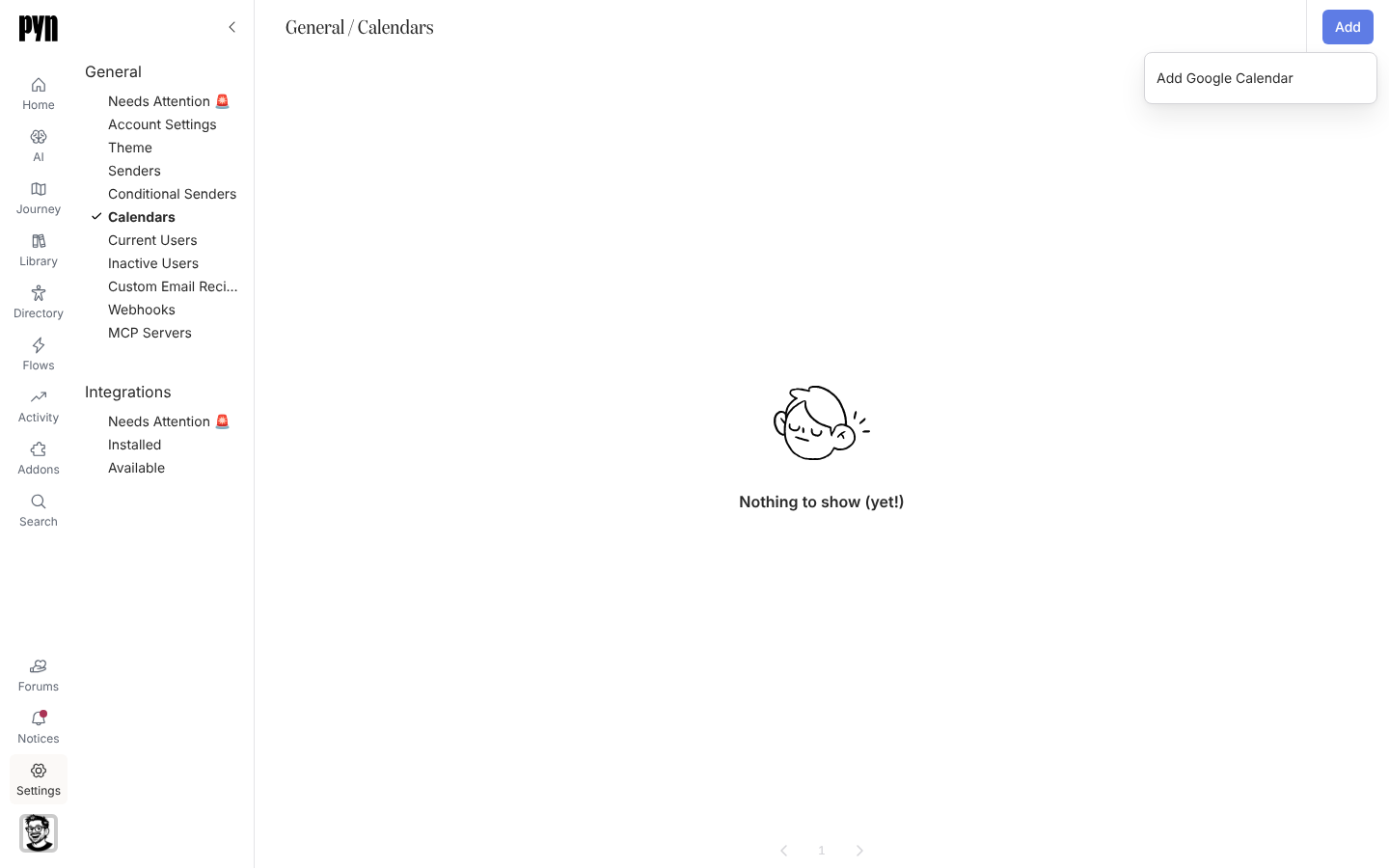
在 Pyn 中,打开左侧导航中的 Settings,然后选择 General 下的 Calendars。
-
选择 Add,然后选择 Add Google Calendar。如果 Pyn 无法启动连接,标题为 Add Google Calendar 的对话框会显示 “We could not start the Google Calendar connection. Please contact support.”
-
Google 打开。选择账户并选择 Allow。
-
Pyn 打开 Setup your Google Calendar,标题为 Select your calendar:“You’re connected! Select the calendar that events will be picked from. Make sure it’s a calendar with only public events.” 选择日历。
-
你回到 Calendars 视图。打开新的一行;在事件到达之前,它显示“Pyn is syncing this calendar. This can take a few minutes.”
-
在 Pyn 中,打开左侧导航中的 Settings,然后选择 General 下的 Calendars。
-
选择 Add,然后选择 Add Outlook Calendar。如果 Pyn 无法启动连接,标题为 Add Outlook Calendar 的对话框会显示 “We could not start the Outlook Calendar connection. Please contact support.”
-
Microsoft 打开。登录并接受权限。
-
Pyn 打开 Setup your Outlook Calendar,标题为 Select your calendar。选择要同步的日历。
-
你回到 Calendars 视图。打开新的一行;在事件到达之前,它显示“Pyn is syncing this calendar. This can take a few minutes.”
你应该看到什么
Section titled “你应该看到什么”该行显示 Active 以及日历的名称和所有者。它的面板按下一次发生时间列出已同步的事件,每个带有日期和时间。在自动化流程中,添加一个 Invite to Calendar Event 步骤,这些事件会出现在它的选择器中;在首次同步完成之前,该步骤的 Event 字段显示 Syncing your calendar. Events will appear here shortly.,之后会自行填充,而需要重新连接的日历会让它显示 Your calendar needs to be reconnected before its events can be listed.,并带有一个返回 Calendars 的链接。如果几分钟后列表仍为空,打开 … 菜单并选择 Refresh Events,如果无法刷新事件,标题为 Refresh Events 的对话框会告诉你;如果该行显示 Error 且面板说日历需要重新认证,选择 Reconnect 并用同一账户重新登录。
- 日历,了解同步的工作方式。
- Google Workspace,了解 Google 日历和发件人背后的集成。
- Microsoft 365,了解 Outlook 日历和发件人。