

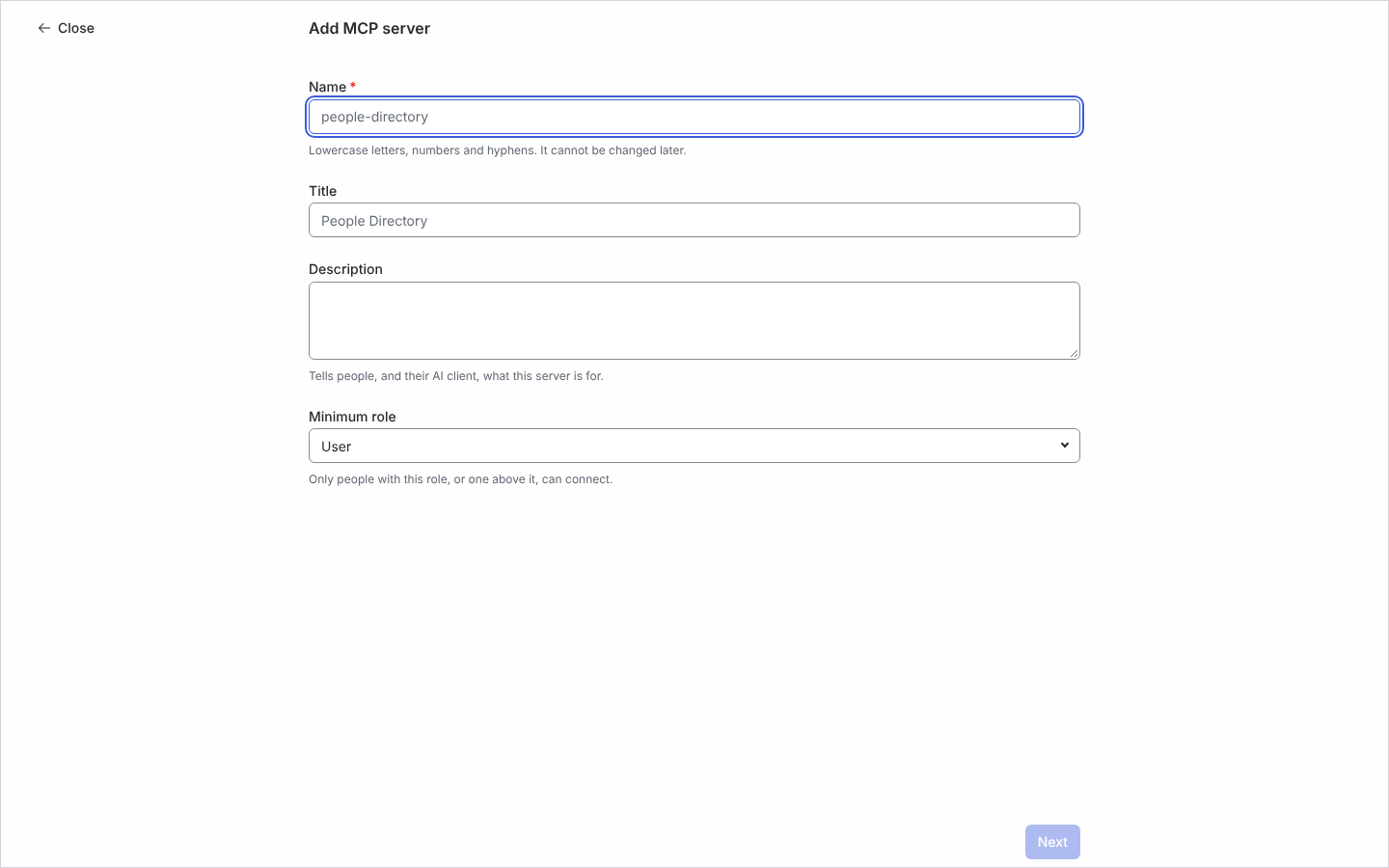
添加 MCP 服务器
你希望人事团队能向他们的 AI 助手询问下周谁入职,而不必把整个工作区交给它。MCP 服务器是一个有名称、带最低角色的操作组合;你分两步创建它,先填信息再选操作,或者从预设开始,然后把它的端点分发出去。
- 你是管理员或所有者。只有这些角色能在导航中看到 AI。
- 选一个不会更改的名称:小写字母、数字和连字符,以字母开头,最多 63 个字符。
- 知道你想提供哪些操作,或者哪个预设最接近。选择器只列出你自己能调用的操作。
-
在 Pyn 中,打开左侧导航中的 AI,然后选择 Agents 下的 MCP Servers。
-
选择 Add。Add MCP server 页面打开。要从现成的组合开始,改为打开 Add 旁边的箭头并选择 Add from Preset。选择器有两个类别,Read only(People Directory、Workspace Explorer)和 Read and write(Flow Author、Flow Operator、Forms and Polls、Journey Mapper、Onboarding Coordinator);每个预设显示描述、它包含多少操作以及它需要的角色。选中一个会填入名称、标题、描述、最低角色和操作,这些你都还可以更改,之后服务器与预设不再有任何关联。预设只列出你的工作区提供的操作,一个因此只剩下
core_getTemplate的预设不会显示。 -
输入 Name(例如
people-directory)。该字段解释“Lowercase letters, numbers and hyphens. It cannot be changed later.” -
输入 Title 和 Description:“Tells people, and their AI client, what this server is for.”
-
选择 Minimum role:Owner、Admin、Power User 或 User。“Only people with this role, or one above it, can connect.” 选择 Next。
-
在 Operations 下,
core_getTemplate已经列在其中:它让客户端查询模板的属性,从而理解它读取到的条目,你可以像移除其他操作一样移除它。搜索以添加其余的每个操作。每个操作带有 Read 或 Write 标签,搜索框下方的一行计数为“n / 100 selected”,其后是所选操作构成的工具列表的大小,以千字节和近似令牌数表示(例如“108 KB · ≈31,000 tokens”):AI 客户端每次连接时加载的就是这份列表。超过 256 KB 后会显示一条说明:“A tool list this large takes a noticeable slice of the AI client’s context on every connect. Consider offering fewer operations.”选择某一行即可移除它;行末的垃圾桶图标标示选择该行会做什么。 -
选择 Add。服务器的面板在右侧打开。
你应该看到什么
Section titled “你应该看到什么”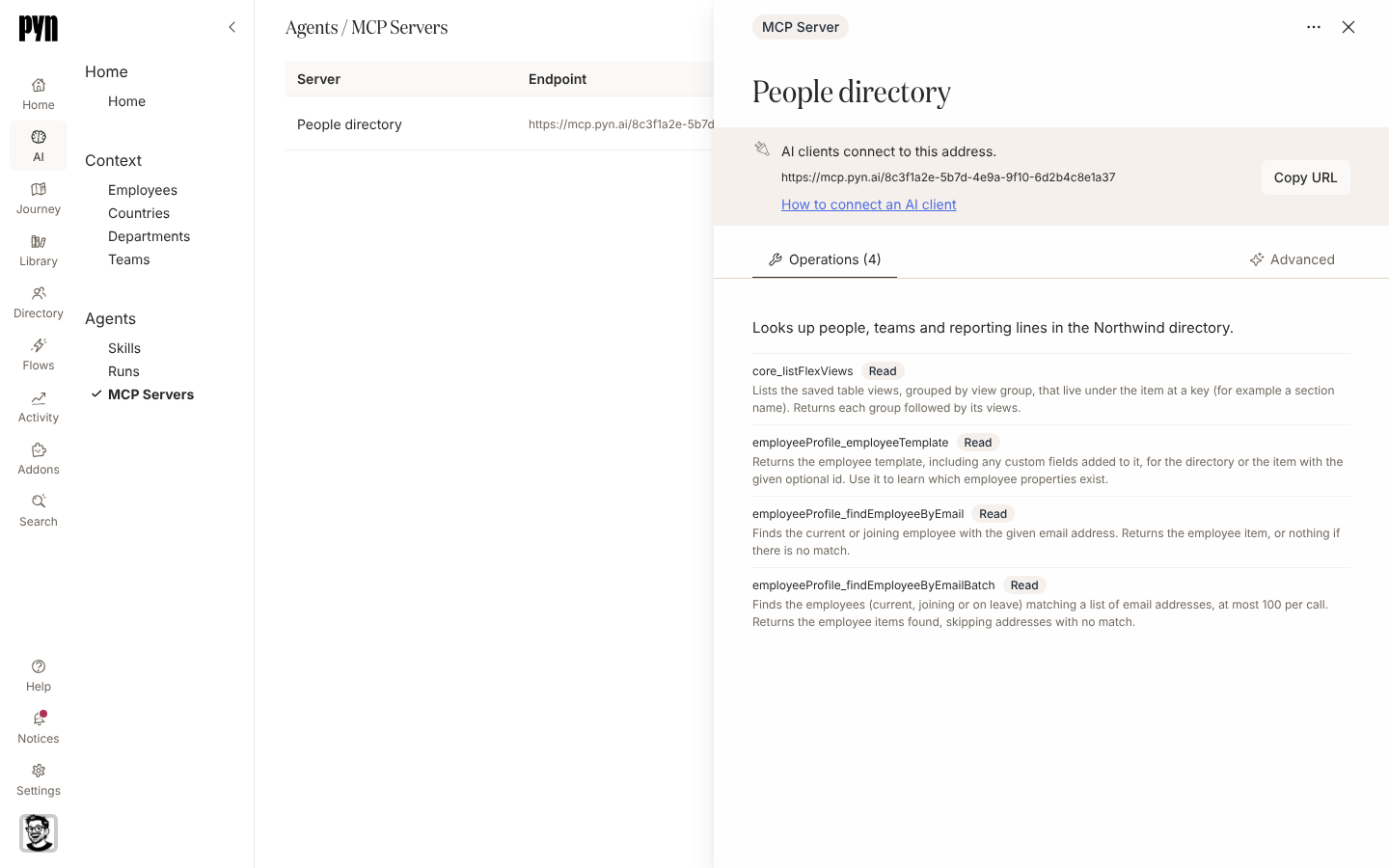
面板打开时顶部有一条提示“AI clients connect to this address.”,下方是地址、一个在页面之上的 Help 面板中打开该指南的 How to connect an AI client 链接,以及一个 Copy URL 按钮。选择后按钮会短暂显示 Copied。提示下方有两个标签页。Operations 的标签上带有计数,其中包含可就地编辑的描述(空描述显示为 (No Description)),然后是各个操作,每个操作带有它的 Read 或 Write 标签。位于标签栏最末端的 Advanced 包含 Minimum Role 和 Schema size,即工具列表所占的千字节数和近似令牌数,列表超过 256 KB 后其下方会显示同样的说明。
把地址粘贴到 AI 客户端的 MCP 设置中;连接 AI 客户端说明 Claude、Claude Code 和 ChatGPT 各自在哪里填入它。客户端把这个人送到 Pyn,他们照常登录(从该屏幕发起的魔法链接或 SSO 登录会回到它),然后看到 Connect client?:“Client is asking to use server title in workspace as you. It can only do what that server offers and you are allowed to do.” 其下有一行统计客户端将获得的工具,分为 read 和 write;Show 把它展开为 Can read 和 Can change data 列表,按工具的标题(Get item)逐一列出,并注明它来自哪个应用,所以这个人能准确看到客户端将能做什么。Who am I 随每个连接提供,不计入其中。角色够不到其中任何一个的人会看到“Your role does not allow any of the tools this server offers.” Allow 把他们送回客户端并完成连接;Deny 拒绝它。低于服务器 Minimum role 的人会看到 Connection Failed 以及“Your account is not allowed to connect to this server.”,一个打开太久的请求显示“This request has expired. Start again from your AI client.” 连接后,客户端的工具列表显示 Who am I(who_am_i),它会返回该连接所代表的人、工作区和服务器,让你能确认客户端在以谁的身份工作;另外服务器上每个此人自身角色允许的操作各有一个工具,以操作命名(例如 core_getItem),在显示标题的客户端中则以文字作为标题(Get item)。每个工具都以此人的身份运行,其角色够不到的操作既不会列出也不能调用。Write 工具会更改数据并被标记出来,所以会对此类更改进行确认的客户端会先询问这个人。管理 MCP 服务器的操作绝不会提供,指向某个 MCP 服务器或连接的调用会被拒绝。在浏览器中运行的客户端与桌面客户端以同样的方式连接。服务器行显示 Active;用它 … 菜单中的 Disable 暂停它,这也会断开每个现有连接。