

创建自动化流程
你想在工作区中新建一个自动化流程,要么围绕一个触发器从零开始搭建,要么从 Pyn 的某个模板复制,这样触发器、时间安排和文案都已就位。无论哪种方式,你最终都会进入编辑器,拿到一份可以调整并发布的草稿。
- 你是 power user、admin 或 owner。创建、复制、归档和发布自动化流程需要 admin 或 owner 角色;power user 可以编辑和手动注册。
- 知道这个自动化流程针对哪个时刻。触发器目录把时刻对应到触发器。
-
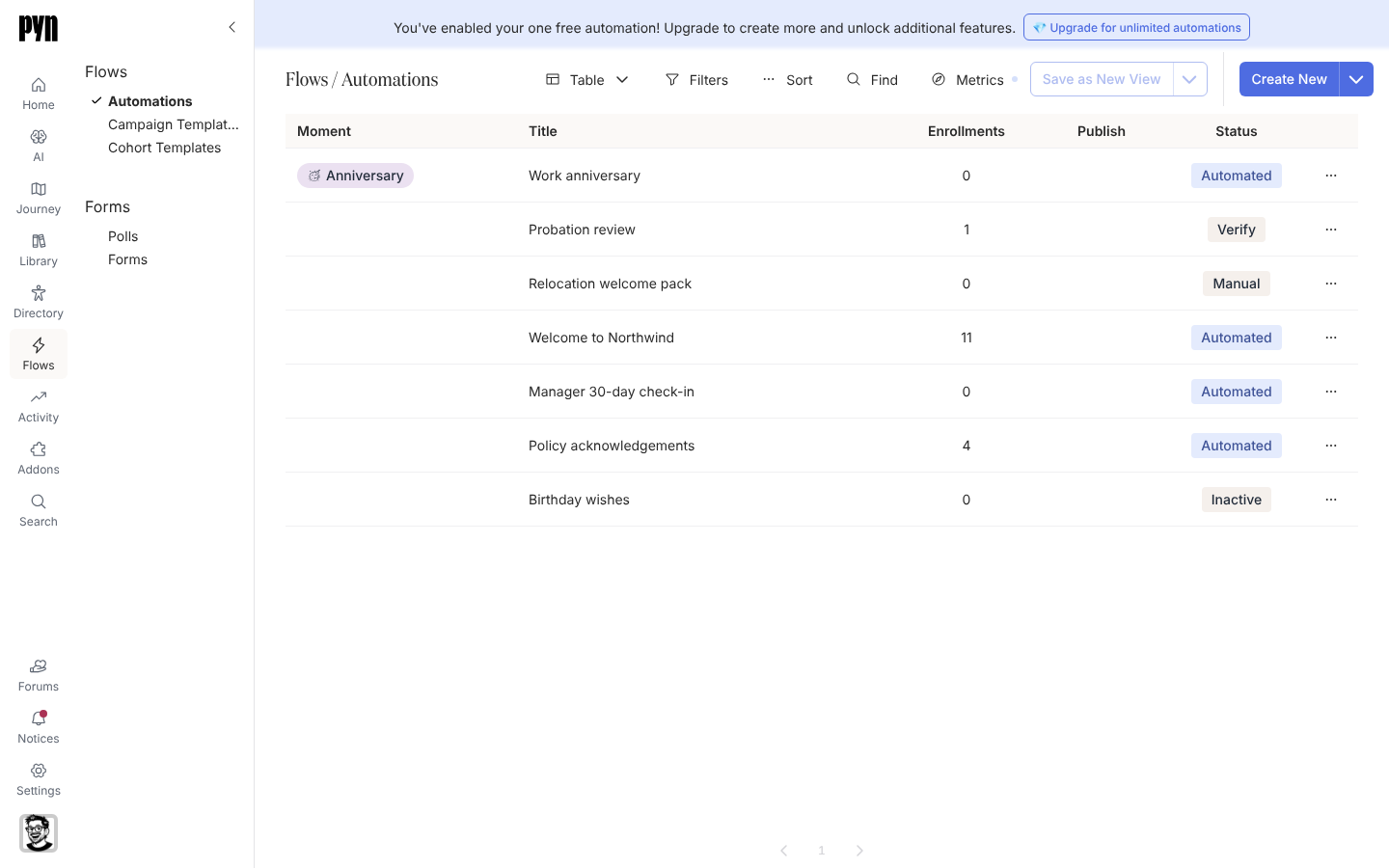
在 Pyn 中,打开左侧导航中的 Flows,然后选择 Automations。
-
要从触发器开始,选择 Create New。Select Trigger 对话框打开,左侧是它的类别:Employee Lifecycle、Dates and Schedules、Team and Org Changes、Form Submission、Employee Properties、Leave Based、Sales Enablement、Support Enablement 和 Other。
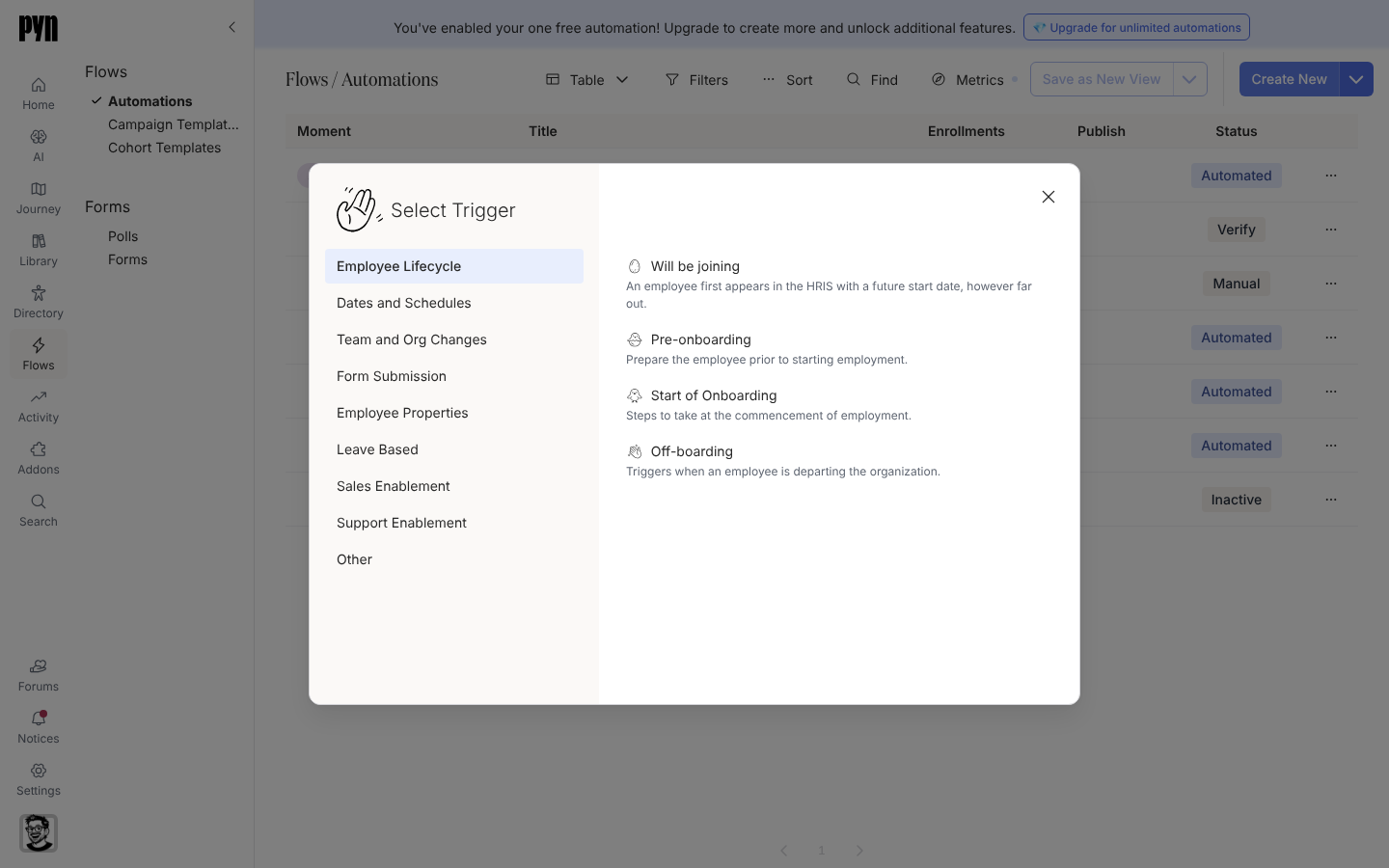
Select Trigger lists the categories on the left and each category's triggers with a one-line description. -
选择一个触发器。Pyn 以 Manual 模式创建该自动化流程(Form Submission 触发器从 Verification 开始),并打开编辑器,显示触发器侧面板。如果无法创建自动化流程,会有一条提示显示 Could not create the automation。
-
要改为从模板开始,选择 Create New 旁边的箭头(向 admin 和 owner 显示),然后选择 Add from Template。Add from Template 对话框按旅程类别分组列出自动化流程和活动模板。选择一个,Pyn 会把它复制到你的工作区,附加到它的时刻上,并打开它。如果复制失败,会有一条提示显示 Could not add the template。
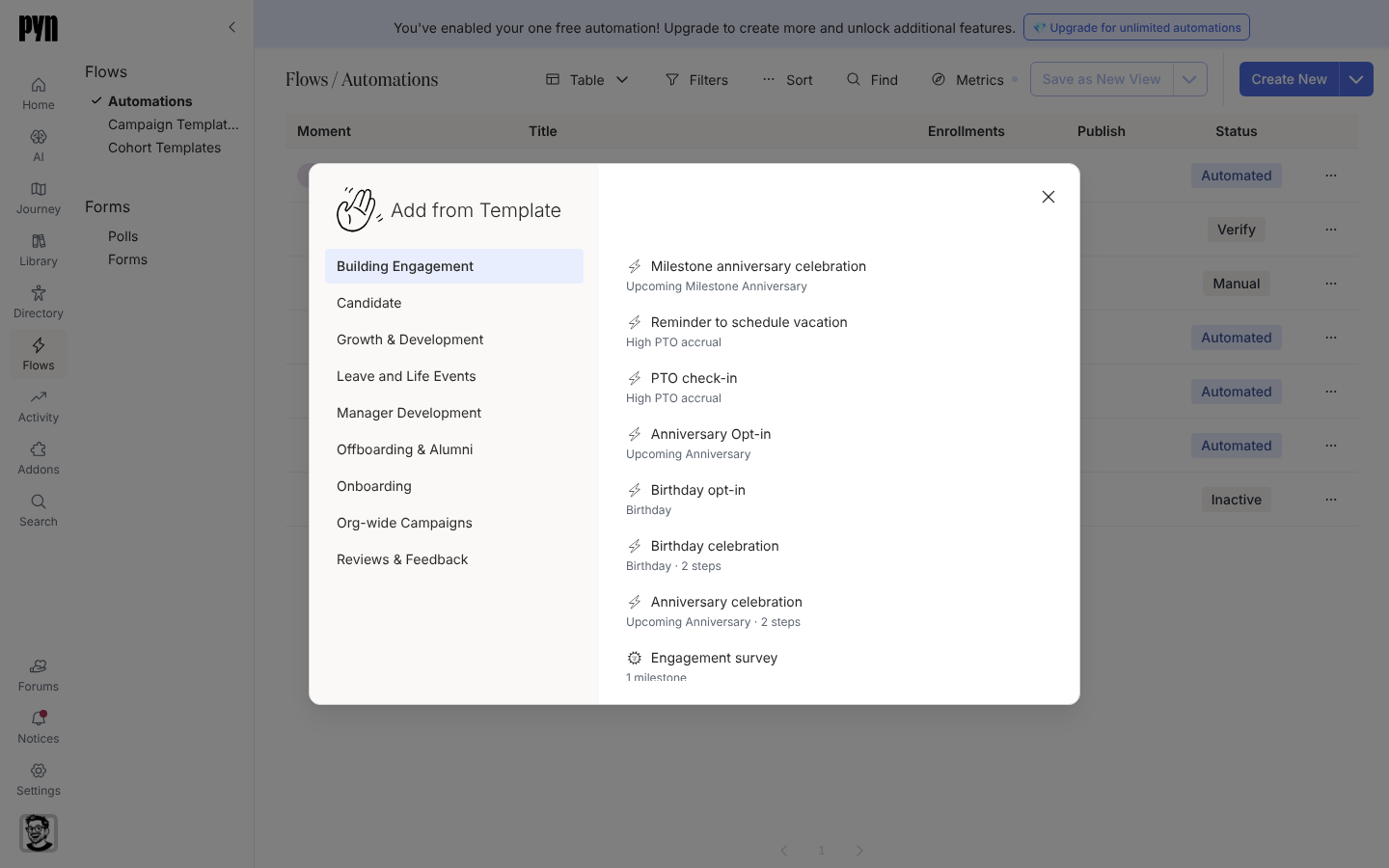
Add from Template copies a ready-made automation into your workspace. -
在编辑器中,选择左上角显示为 (Untitled) 的标题字段并输入名称。标题随输入保存。
-
依次处理触发器侧面板的 Configure、Audience、Exit conditions 和 Advanced 标签页,然后选择 Add a step 构建序列。每个步骤打开它自己的侧面板;步骤和消息页面介绍收件人、发件人和排期。
-
草稿就绪后选择 Publish。然后打开它旁边的模式按钮,用 Change Mode 把自动化流程移到 Verification 或 Automated。
你应该看到什么
Section titled “你应该看到什么”该自动化流程出现在 Automations 表格中,带有你的标题、显示其模式的 Status 标签(Verification 显示为 Verify)和为 0 的 Enrollments 计数。当草稿有你尚未发布的更改时,Publish 列显示 Required。
- 选择触发器,为时刻挑选合适的类别。
- 设置自动化流程的受众,限制被注册的人。
- 更改自动化流程的模式,把它开启。
- 步骤和消息,了解步骤内的一切。