

连接 OpenID Connect 提供商
你的身份提供商支持 OpenID Connect,你希望由它让员工登录 Pyn 并决定他们的角色。Single Sign-On 集成接收提供商、它的签发者和一个使用授权码流程的客户端,检查提供商的 OpenID 配置,并显示你需要的重定向 URI 和登录链接。
- 你是 Pyn 中的管理员或所有者,并且你的工作区启用了 Single Sign-On 集成。
- 有人可以在你的提供商中创建一个机密客户端:“The client needs the standard authorization code flow and a client secret.” Pyn 请求
openid、profile和email范围;要进行角色映射,ID 令牌需要一个groups声明(Entra 发出的是roles),任何用于解锁它的范围填在 Additional Scopes 中。 - 你有签发者、客户端 ID 和客户端密钥。对于 Keycloak,你需要 Keycloak Server URL 和 Realm;Pyn 由它们组合出签发者。
-
在 Pyn 中,打开左侧导航中的 Settings,然后打开 Integrations 下的 Available。
-
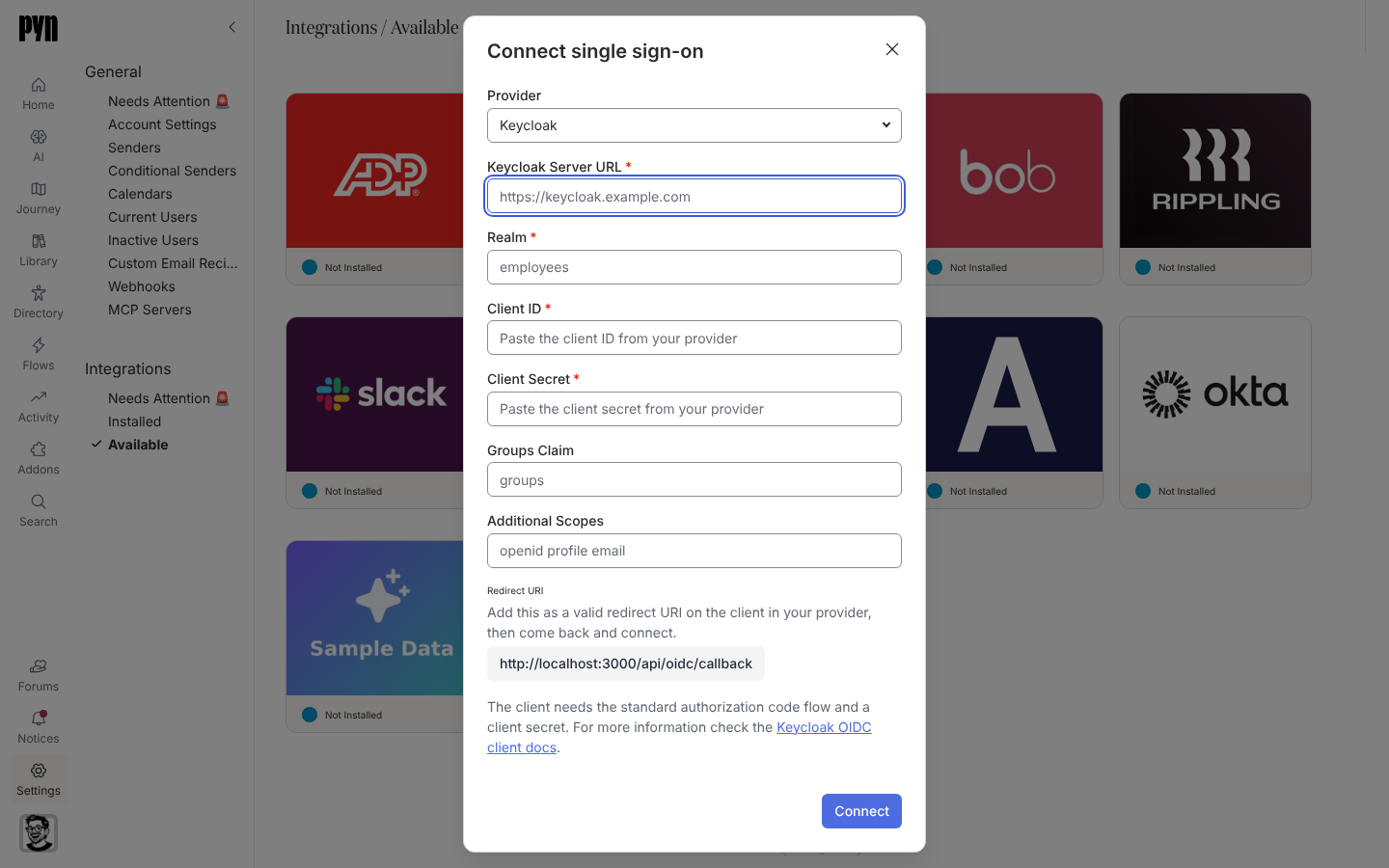
选择 Single Sign-On 磁贴。Connect single sign-on 对话框打开。
-
选择 Provider:Keycloak、Okta、Microsoft Entra ID、Auth0、Ping Identity,或为其他任何提供商选择 Single Sign-On。
-
对于 Keycloak,输入 Keycloak Server URL 和 Realm;对于其他提供商,输入 Issuer URL。
-
输入 Client ID 和 Client Secret。如果你的提供商使用的名称不是
groups,设置 Groups Claim;如果它需要的范围多于openid profile email,设置 Additional Scopes。 -
复制对话框中显示的 Redirect URI:“Add this as a valid redirect URI on the client in your provider, then come back and connect.”
-
选择 Connect。对话框显示 “Checking those details with your provider…”,然后出现通知:“Single sign-on is configured. Use the sign-in link on the integration to let your people sign in with it.”
-
在面板上的 Group mappings 下,为 Owner groups、Admin groups、Power user groups 和 User groups 输入以逗号分隔的群组名称,从所有者开始。
你应该看到什么
Section titled “你应该看到什么”磁贴在 Installed 下显示 Active,面板显示 Redirect URI 和 Sign-in link:“Share this with your people to sign in through your provider. Opening it signs you in.” 如果对话框拒绝,查看它给出的原因:“That address answered, but not with an OpenID configuration.” 表示签发者不是提供商发布其配置所用的基础 URL;“Could not reach that issuer.” 表示它无法从互联网访问;“The issuer needs to be a full URL, starting with https://.” 是格式问题;“An unexpected error occurred. Please check the details and try again. If the error persists, contact support.” 表示请求没有送达,请再试一次。… 菜单中的 Reconnect 重新打开对话框以更改其中任何内容。