

日历
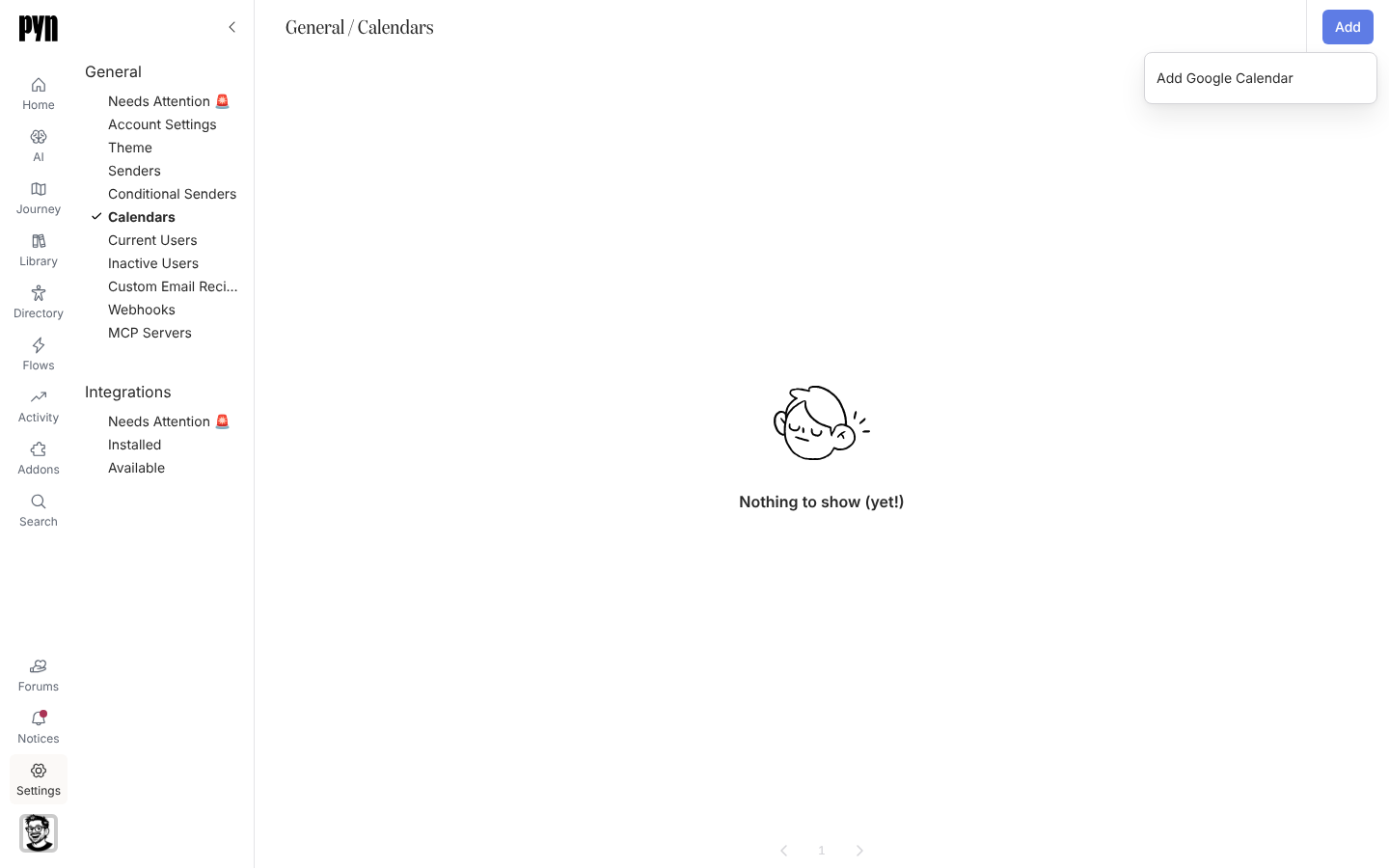
日历连接让流程可以邀请某人参加一个真实的事件:新员工入职首个周一的培训、全员大会、经理的定期一对一。Pyn 从你选择的一个日历同步事件,Invite to Calendar Event 步骤从中挑选。Calendars 视图列出每个已连接的日历、它的状态以及 Pyn 已同步的事件。
你可以在这里做什么
Section titled “你可以在这里做什么”- 用 Add > Add Google Calendar 或 Add Outlook Calendar 连接日历
- 打开一个日历查看它已同步的事件,每个事件带有重复规则和时间,最早到来的在前
- 从 … 菜单选择 Refresh Events,立即拉取更改
- 当日历显示 Error、刷新失败后,或者它的面板说需要重新认证时,选择 Reconnect
- Archive 不再需要的日历
同步的工作方式
Section titled “同步的工作方式”Pyn 从所选日历同步定期事件,包括每个系列的开始时间、重复规则和时区。Pyn 大约每小时刷新一次每个活跃日历;Refresh Events 立即拉取更改。
刷新失败会把日历设为 Error,停止同步它,并在通知中发出一条 Calendar sync failed 通知。在该日历上选择 Reconnect 让它回到 Active 并恢复同步。如果无法开始重新连接,会出现一个标题为 Reconnect Google Calendar 或 Reconnect Outlook Calendar 的对话框,显示“We could not start the Google Calendar connection. Please contact support.”(或 Outlook 的对应文字)。当一个系列在源头被删除时,使用它的步骤会报告 Event Not Found。已连接但从未选择日历的日历不显示状态标签;打开它,提示显示“This calendar needs to be configured. Click below to select which calendar to sync.”,并带有一个 Setup Calendar 按钮。
在应用中的位置
Section titled “在应用中的位置”在 Pyn 中打开 /settings/general/calendars,或打开主导航中的 Settings,然后选择 General 下的 Calendars。Add Outlook Calendar 只在启用了 Microsoft 365 的工作区中出现。
- 连接日历,了解步骤。
- Google Workspace,了解 Google 一侧及其权限。
- Microsoft 365,了解 Outlook。
- 自动化流程,添加一个 Invite to Calendar Event 步骤。