

添加活动模板
目录中有为你写好的活动模板:澳大利亚、加拿大、中国、法国、印度、以色列、日本、英国和美国 2026 年的公共假日,其中几个国家的文化和宗教纪念日,全球庆祝的日子,以及轻松一些的员工感谢日。每个模板都是 2026 年版;每个都是一组有日期的里程碑,附一条可直接编辑的消息。你把一个模板添加到工作区,然后把人员注册进你想要的里程碑。
- 你是 Admin。Power User 在模板添加后能看到它们,但目录入口(Automations 上 Create New 旁边的箭头,以及 Campaigns 日历上 Create new 旁边的箭头)只对 admin 显示。
-
在 Pyn 中,打开左侧导航中的 Flows,然后选择 Automations。或者打开 Activity,然后选择 Campaigns,直接从你将要把模板注册到的日历上添加它。
-
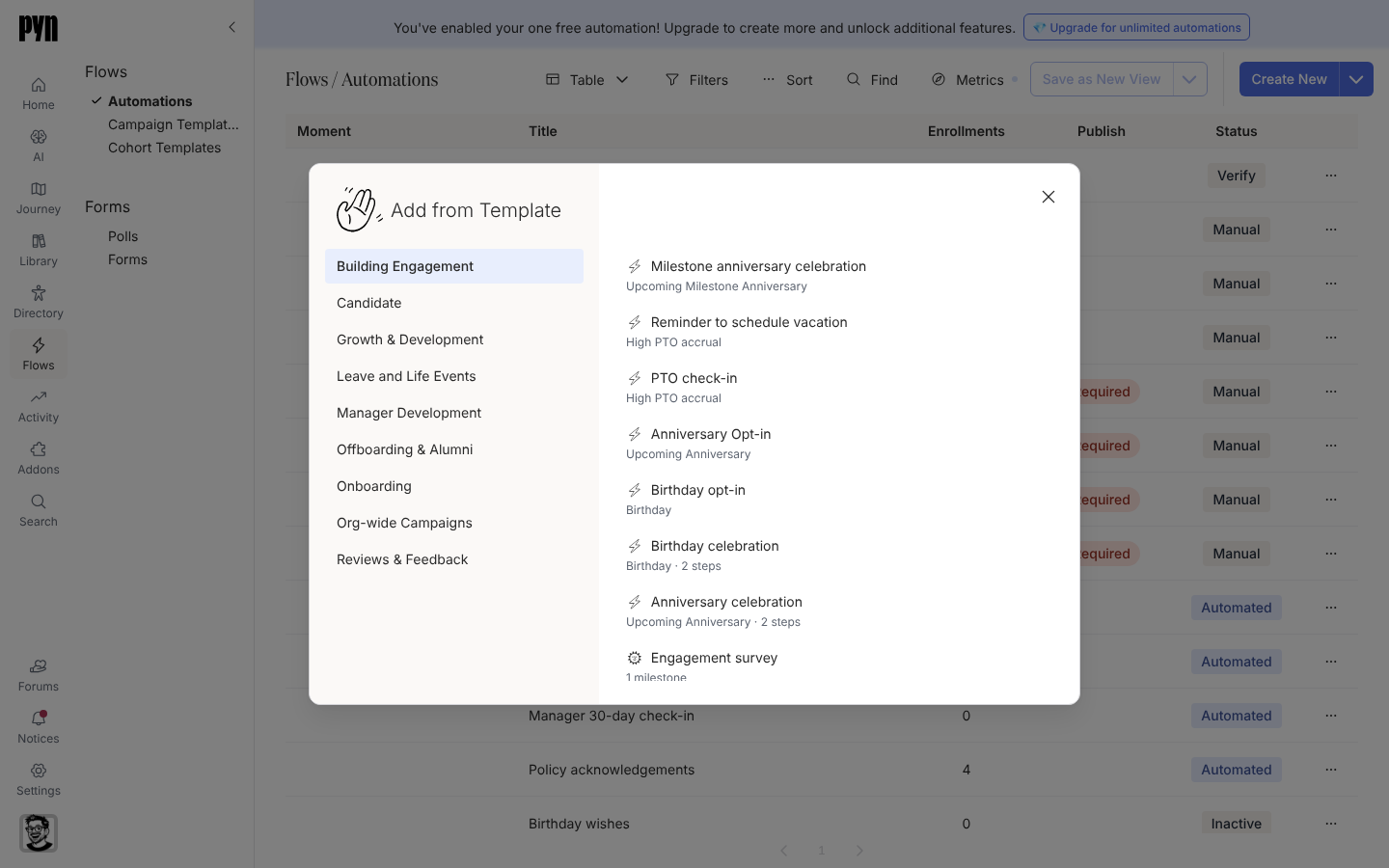
选择右上角 Create New 旁边的箭头(它的标签是 More create options),然后选择 Add from Template。在 Campaigns 日历上,箭头位于 Create new 旁边,菜单项显示为 Create from template;当日历没有显示任何活动时,左侧列表以 start from a template 提供同一个选择器。
-
在 Add from Template 对话框中,在左侧挑选一个旅程类别,例如 Org-wide Campaigns。每个条目下方都有一行:活动模板显示自己的表情符号和里程碑数量;自动化流程显示一个闪电图标、它的触发器(或它的时刻),以及有步骤时的步骤数量。从 Campaigns 日历打开时,对话框只列出活动模板。
-
选择模板,例如 2026–27 US Holidays。无论你从哪个页面开始,Pyn 都会添加它并在
/flows/campaign-template/...打开它。如果复制失败,会有一条提示显示 Could not add the template。 -
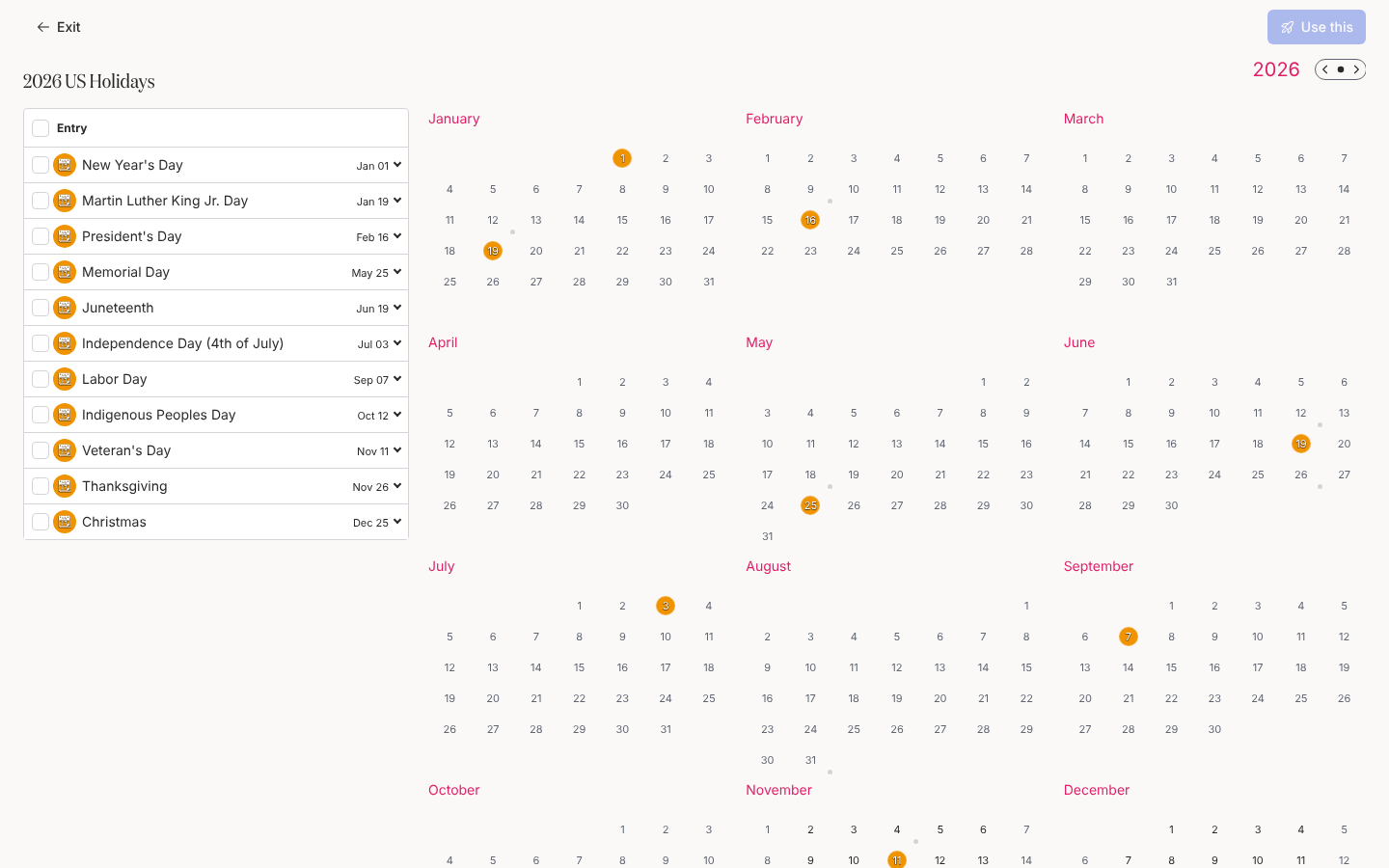
查看日历:每个里程碑是一个带颜色的日期,左侧列表列出它们的名称和日期。展开一个里程碑,查看它带的消息步骤。
-
准备使用时,按照将员工注册到活动操作。选择 Exit 返回 Flows。
你应该看到什么
Section titled “你应该看到什么”在 Flows 的 Campaign Templates 下,模板以其标题列出,如果是从时刻添加的,Moment 列中会显示该时刻。选择这一行会打开模板的日历页面,右上角有 Use this。在你使用它之前,不会发送任何内容,也不会注册任何人。
- 将员工注册到活动,把里程碑变成活动。
- 将流程或内容附加到时刻,从旅程地图添加模板。
- 创建自动化流程,了解同一个对话框中的自动化流程模板。